> ## Documentation Index
> Fetch the complete documentation index at: https://docs-staging-chore-myaccount-api-autoupdate.mintlify.site/llms.txt
> Use this file to discover all available pages before exploring further.

> Learn how to configure a progressive profile form using Forms for Actions

# Use Cases: Configure a progressive profile form using Forms

<Card title="Before you start">
  1. Create a [Machine-to-Machine Application](/docs/get-started/auth0-overview/create-applications/machine-to-machine-apps) with the following scopes enabled:

  * `read:users`
  * `update:users`
  * `create:users`
  * `read:users_app_metadata`
  * `update:users_app_metadata`
  * `create:users_app_metadata`

  2. Add a [Vault connection](/docs/customize/forms/vault) using the M2M application credentials.
</Card>

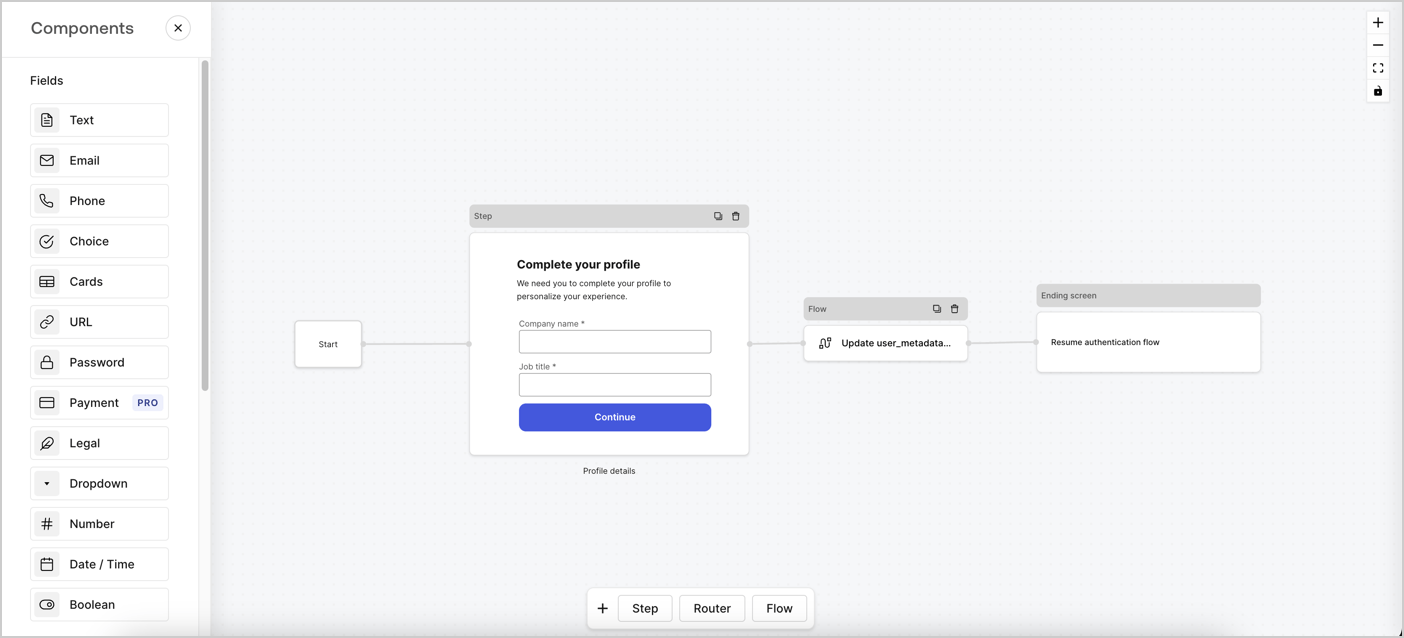
Forms for Actions allows you to create progressive profiling flows to decide when to prompt users to collect missing information, such as company name and job title, and store them as `user_metadata` attributes.
<Frame>
  <img src="https://mintcdn.com/docs-staging-chore-myaccount-api-autoupdate/chzCkjAmoOTh74XU/docs/images/cdy7uua7fh8z/xUx9YmnHvnAqL19JvNtNP/60dae88f893d4ebe8e3523421e960596/Progressive-profle-overview.png?fit=max&auto=format&n=chzCkjAmoOTh74XU&q=85&s=0cd89048d6d3cd5b1ffbaab3d1cc8ffe" alt="Dashboard > Actions > Forms > Form" data-og-width="1404" width="1404" data-og-height="638" height="638" data-path="docs/images/cdy7uua7fh8z/xUx9YmnHvnAqL19JvNtNP/60dae88f893d4ebe8e3523421e960596/Progressive-profle-overview.png" data-optimize="true" data-opv="3" srcset="https://mintcdn.com/docs-staging-chore-myaccount-api-autoupdate/chzCkjAmoOTh74XU/docs/images/cdy7uua7fh8z/xUx9YmnHvnAqL19JvNtNP/60dae88f893d4ebe8e3523421e960596/Progressive-profle-overview.png?w=280&fit=max&auto=format&n=chzCkjAmoOTh74XU&q=85&s=f4982781b0aaacc855dce44e6c7c6335 280w, https://mintcdn.com/docs-staging-chore-myaccount-api-autoupdate/chzCkjAmoOTh74XU/docs/images/cdy7uua7fh8z/xUx9YmnHvnAqL19JvNtNP/60dae88f893d4ebe8e3523421e960596/Progressive-profle-overview.png?w=560&fit=max&auto=format&n=chzCkjAmoOTh74XU&q=85&s=1d4265c1a0f4e377499078cae33c35eb 560w, https://mintcdn.com/docs-staging-chore-myaccount-api-autoupdate/chzCkjAmoOTh74XU/docs/images/cdy7uua7fh8z/xUx9YmnHvnAqL19JvNtNP/60dae88f893d4ebe8e3523421e960596/Progressive-profle-overview.png?w=840&fit=max&auto=format&n=chzCkjAmoOTh74XU&q=85&s=a6d7d4ecc4aeca32e94c32810618cf38 840w, https://mintcdn.com/docs-staging-chore-myaccount-api-autoupdate/chzCkjAmoOTh74XU/docs/images/cdy7uua7fh8z/xUx9YmnHvnAqL19JvNtNP/60dae88f893d4ebe8e3523421e960596/Progressive-profle-overview.png?w=1100&fit=max&auto=format&n=chzCkjAmoOTh74XU&q=85&s=47a0b398435911a903aab6acbd65cc98 1100w, https://mintcdn.com/docs-staging-chore-myaccount-api-autoupdate/chzCkjAmoOTh74XU/docs/images/cdy7uua7fh8z/xUx9YmnHvnAqL19JvNtNP/60dae88f893d4ebe8e3523421e960596/Progressive-profle-overview.png?w=1650&fit=max&auto=format&n=chzCkjAmoOTh74XU&q=85&s=4553739acbf5a46a6180954eed490b39 1650w, https://mintcdn.com/docs-staging-chore-myaccount-api-autoupdate/chzCkjAmoOTh74XU/docs/images/cdy7uua7fh8z/xUx9YmnHvnAqL19JvNtNP/60dae88f893d4ebe8e3523421e960596/Progressive-profle-overview.png?w=2500&fit=max&auto=format&n=chzCkjAmoOTh74XU&q=85&s=074ec3a3ec1388364e806de23e69b605 2500w" />
</Frame>

The sections below outline how you can create a progressive profile form using nodes and flows, along with steps for adding your form to a [Post Login Action](/docs/customize/actions/explore-triggers/signup-and-login-triggers/login-trigger).

## Create a form from scratch

Follow these steps to create a form to gather information:

1. Open the Form editor by selecting **Auth0 Dashboard > Actions > Forms.**
2. Select **Create Form** > **Start from scratch**.

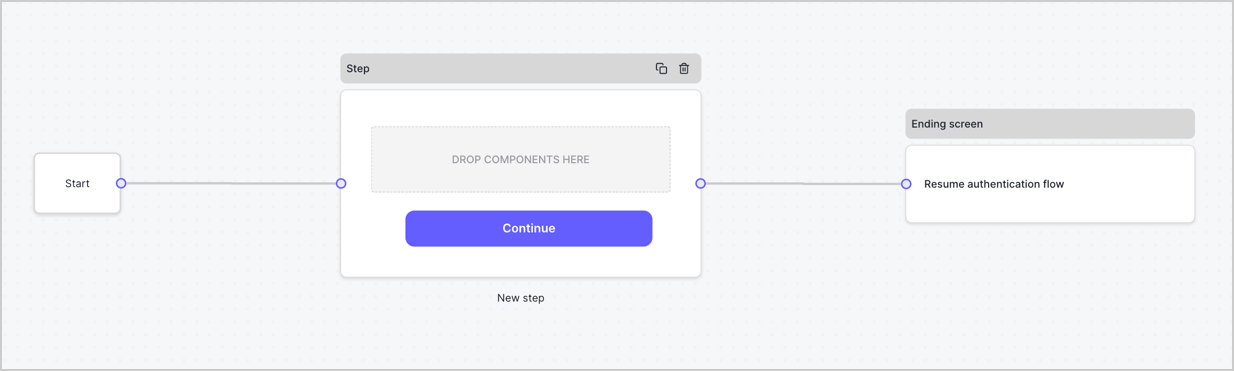
By default, a new form contains a Start node, a Step node, and an Ending screen node.
<Frame>
  <img src="https://mintcdn.com/docs-staging-chore-myaccount-api-autoupdate/XSZIwv0-vQPlgEcO/docs/images/cdy7uua7fh8z/2TZ9jSjgEcARFpULI6hz4R/a4319a1bd482f2ee5cc23100fdb2f42c/New-form-Forms-for-action-use-case.png?fit=max&auto=format&n=XSZIwv0-vQPlgEcO&q=85&s=fe4547d8d2a619f45dbfb09783ebe5da" alt="Dashboard > Forms > Use Cases > Form" data-og-width="1234" width="1234" data-og-height="371" height="371" data-path="docs/images/cdy7uua7fh8z/2TZ9jSjgEcARFpULI6hz4R/a4319a1bd482f2ee5cc23100fdb2f42c/New-form-Forms-for-action-use-case.png" data-optimize="true" data-opv="3" srcset="https://mintcdn.com/docs-staging-chore-myaccount-api-autoupdate/XSZIwv0-vQPlgEcO/docs/images/cdy7uua7fh8z/2TZ9jSjgEcARFpULI6hz4R/a4319a1bd482f2ee5cc23100fdb2f42c/New-form-Forms-for-action-use-case.png?w=280&fit=max&auto=format&n=XSZIwv0-vQPlgEcO&q=85&s=78911f814a627fc432f412310e1a31cc 280w, https://mintcdn.com/docs-staging-chore-myaccount-api-autoupdate/XSZIwv0-vQPlgEcO/docs/images/cdy7uua7fh8z/2TZ9jSjgEcARFpULI6hz4R/a4319a1bd482f2ee5cc23100fdb2f42c/New-form-Forms-for-action-use-case.png?w=560&fit=max&auto=format&n=XSZIwv0-vQPlgEcO&q=85&s=742b733d40399d44a140a73d77f16114 560w, https://mintcdn.com/docs-staging-chore-myaccount-api-autoupdate/XSZIwv0-vQPlgEcO/docs/images/cdy7uua7fh8z/2TZ9jSjgEcARFpULI6hz4R/a4319a1bd482f2ee5cc23100fdb2f42c/New-form-Forms-for-action-use-case.png?w=840&fit=max&auto=format&n=XSZIwv0-vQPlgEcO&q=85&s=54adb6d457a7f25c25c8204d74e8e73e 840w, https://mintcdn.com/docs-staging-chore-myaccount-api-autoupdate/XSZIwv0-vQPlgEcO/docs/images/cdy7uua7fh8z/2TZ9jSjgEcARFpULI6hz4R/a4319a1bd482f2ee5cc23100fdb2f42c/New-form-Forms-for-action-use-case.png?w=1100&fit=max&auto=format&n=XSZIwv0-vQPlgEcO&q=85&s=155493b1e7a9f2b9da15fe2b2530f248 1100w, https://mintcdn.com/docs-staging-chore-myaccount-api-autoupdate/XSZIwv0-vQPlgEcO/docs/images/cdy7uua7fh8z/2TZ9jSjgEcARFpULI6hz4R/a4319a1bd482f2ee5cc23100fdb2f42c/New-form-Forms-for-action-use-case.png?w=1650&fit=max&auto=format&n=XSZIwv0-vQPlgEcO&q=85&s=5d27b4c94c47cd0cfd557abbe1ce850c 1650w, https://mintcdn.com/docs-staging-chore-myaccount-api-autoupdate/XSZIwv0-vQPlgEcO/docs/images/cdy7uua7fh8z/2TZ9jSjgEcARFpULI6hz4R/a4319a1bd482f2ee5cc23100fdb2f42c/New-form-Forms-for-action-use-case.png?w=2500&fit=max&auto=format&n=XSZIwv0-vQPlgEcO&q=85&s=4bca5d7daf4c8eec01ecb1913f7373cd 2500w" />
</Frame>

### Configure the Step node

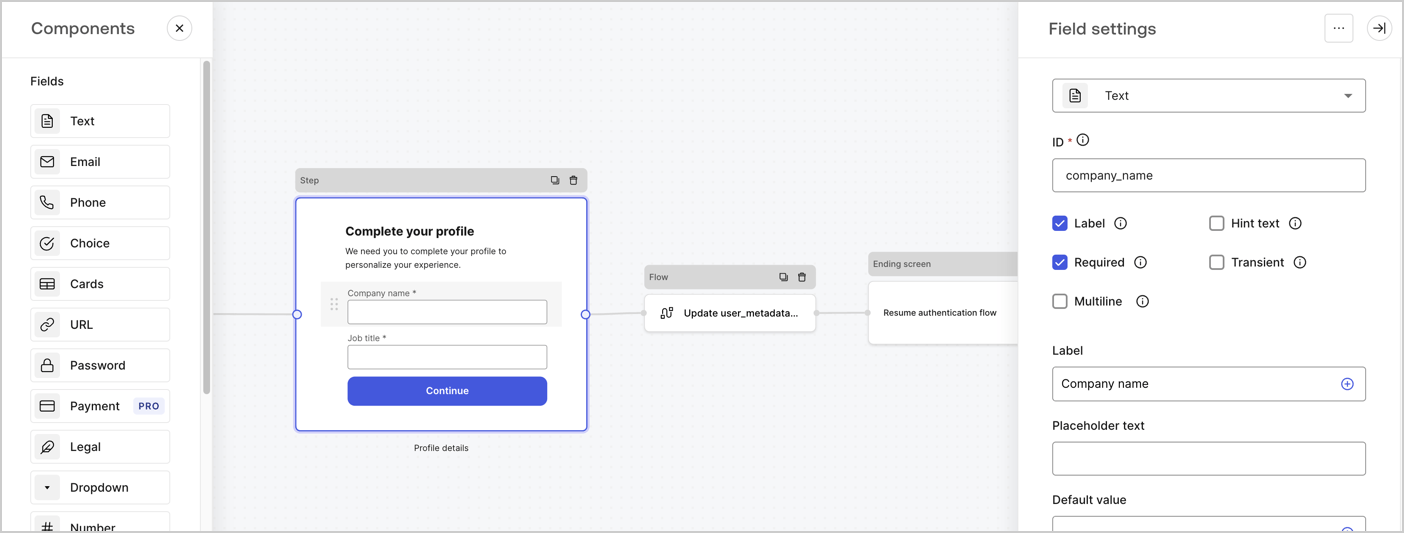
The Step node is the graphical interface visible to users. Add [Fields](/docs/customize/forms/nodes-and-components) to the Step node to collect the user's company name and job title values by following these steps:

1. Drag a **Rich text** field from the **Components menu** into the **Step** node.

   * **Rich text**: Enter a custom message.

     * **Example**: `Complete your profile! We need you to complete your profile to personalize your experience.`
   * Select **Save**.
2. Drag a **Text** field into the **Step** node.

   * **ID**: Enter `company_name`.
   * **Label**: Enable the checkbox.
   * **Label**: Enter `Company name`.
   * **Required**: Enable the checkbox.
   * Select **Save**.
3. Drag a **Text** field into the **Step** node.

   1. **ID**: Enter `job_title`.
   2. **Label**: Enter `Job title`.
   3. **Label**: Enable the checkbox.
   4. **Required**: Enable the checkbox.
   5. Select **Save**.
4. Select **Publish** to save.
<Frame>
  <img src="https://mintcdn.com/docs-staging-chore-myaccount-api-autoupdate/o1UR_wVpl9p5EHsG/docs/images/cdy7uua7fh8z/6H1lRzwKyYioQyQJ9MtIoM/aa248e92fc028a68a5b92ff361a11644/progressive-profile-step.png?fit=max&auto=format&n=o1UR_wVpl9p5EHsG&q=85&s=0d3dfb5a911a529f96f4c04c106d0a3c" alt="Dashboard > Actions > Forms > Form > Step node" data-og-width="1404" width="1404" data-og-height="533" height="533" data-path="docs/images/cdy7uua7fh8z/6H1lRzwKyYioQyQJ9MtIoM/aa248e92fc028a68a5b92ff361a11644/progressive-profile-step.png" data-optimize="true" data-opv="3" srcset="https://mintcdn.com/docs-staging-chore-myaccount-api-autoupdate/o1UR_wVpl9p5EHsG/docs/images/cdy7uua7fh8z/6H1lRzwKyYioQyQJ9MtIoM/aa248e92fc028a68a5b92ff361a11644/progressive-profile-step.png?w=280&fit=max&auto=format&n=o1UR_wVpl9p5EHsG&q=85&s=c30ddba15fb3fc32e1818240ddb64956 280w, https://mintcdn.com/docs-staging-chore-myaccount-api-autoupdate/o1UR_wVpl9p5EHsG/docs/images/cdy7uua7fh8z/6H1lRzwKyYioQyQJ9MtIoM/aa248e92fc028a68a5b92ff361a11644/progressive-profile-step.png?w=560&fit=max&auto=format&n=o1UR_wVpl9p5EHsG&q=85&s=c6e63239dae2ce2c16ea2adb02cba32b 560w, https://mintcdn.com/docs-staging-chore-myaccount-api-autoupdate/o1UR_wVpl9p5EHsG/docs/images/cdy7uua7fh8z/6H1lRzwKyYioQyQJ9MtIoM/aa248e92fc028a68a5b92ff361a11644/progressive-profile-step.png?w=840&fit=max&auto=format&n=o1UR_wVpl9p5EHsG&q=85&s=3dd857e4439cc2828471303f011d5133 840w, https://mintcdn.com/docs-staging-chore-myaccount-api-autoupdate/o1UR_wVpl9p5EHsG/docs/images/cdy7uua7fh8z/6H1lRzwKyYioQyQJ9MtIoM/aa248e92fc028a68a5b92ff361a11644/progressive-profile-step.png?w=1100&fit=max&auto=format&n=o1UR_wVpl9p5EHsG&q=85&s=bdeeb6f14571bbc5ff73aceb9b1e3719 1100w, https://mintcdn.com/docs-staging-chore-myaccount-api-autoupdate/o1UR_wVpl9p5EHsG/docs/images/cdy7uua7fh8z/6H1lRzwKyYioQyQJ9MtIoM/aa248e92fc028a68a5b92ff361a11644/progressive-profile-step.png?w=1650&fit=max&auto=format&n=o1UR_wVpl9p5EHsG&q=85&s=90a29a727337bac70f76ae617edd1a38 1650w, https://mintcdn.com/docs-staging-chore-myaccount-api-autoupdate/o1UR_wVpl9p5EHsG/docs/images/cdy7uua7fh8z/6H1lRzwKyYioQyQJ9MtIoM/aa248e92fc028a68a5b92ff361a11644/progressive-profile-step.png?w=2500&fit=max&auto=format&n=o1UR_wVpl9p5EHsG&q=85&s=8da67a430dffc230239ddfd27cbc5766 2500w" />
</Frame>

### Configure the flow node

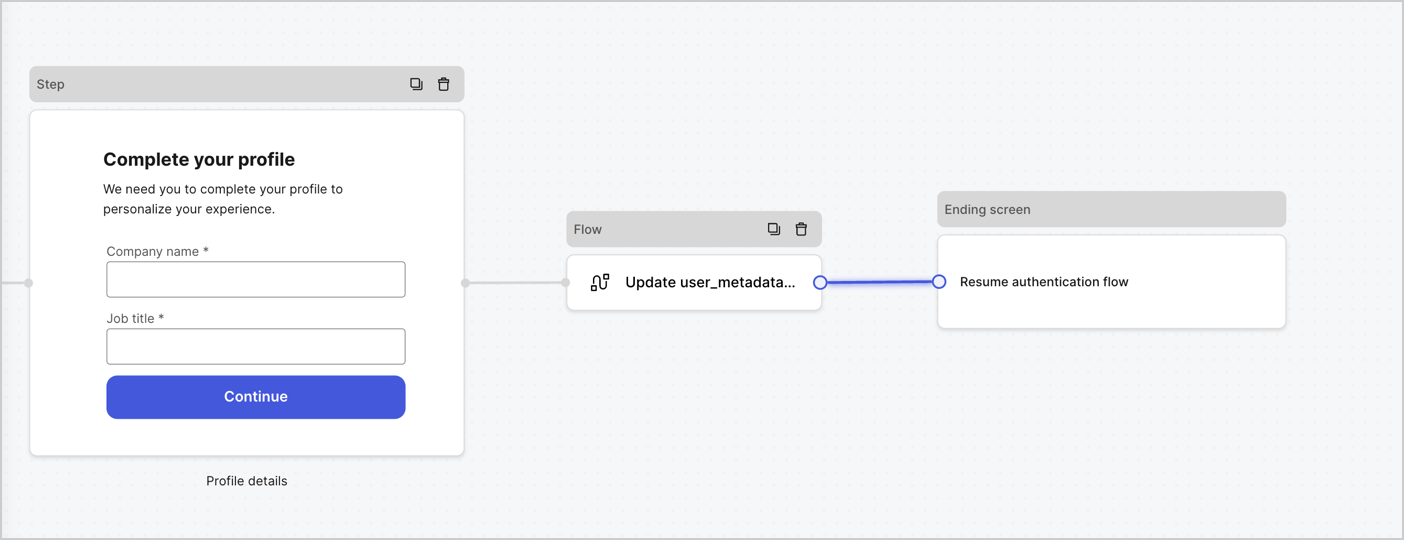
Add a **Flow** node after the **Step** node to update the `user_metadata` and resume the authentication flow by following these steps:

1. Select **Flow** from the bottom of the Form editor.
2. Remove the existing link between the **Step** and **Ending Screen** nodes.
3. Select the new **Flow** > **Click to add a flow** > **Create a new flow.**

   * Enter `Update user_metadata` in the **Name** field.
   * Select **Create**.
   * Select **Save**.
4. Link the **Flow** node to the **Step** and **Ending Screen** nodes as pictured below.
5. Select **Publish** to save.
<Frame>
  <img src="https://mintcdn.com/docs-staging-chore-myaccount-api-autoupdate/gX70I896qXZ9LmsE/docs/images/cdy7uua7fh8z/5C91DaWn4LGtJT9BF87ssu/095171d0c452a287c44bfde12fd6d13f/link-nodes.png?fit=max&auto=format&n=gX70I896qXZ9LmsE&q=85&s=6b23dda35a877930750194030bbf5c21" alt="Dashboard > Actions > Forms > Form" data-og-width="1404" width="1404" data-og-height="540" height="540" data-path="docs/images/cdy7uua7fh8z/5C91DaWn4LGtJT9BF87ssu/095171d0c452a287c44bfde12fd6d13f/link-nodes.png" data-optimize="true" data-opv="3" srcset="https://mintcdn.com/docs-staging-chore-myaccount-api-autoupdate/gX70I896qXZ9LmsE/docs/images/cdy7uua7fh8z/5C91DaWn4LGtJT9BF87ssu/095171d0c452a287c44bfde12fd6d13f/link-nodes.png?w=280&fit=max&auto=format&n=gX70I896qXZ9LmsE&q=85&s=f1c7e1691a06f155171ecf6073d24baf 280w, https://mintcdn.com/docs-staging-chore-myaccount-api-autoupdate/gX70I896qXZ9LmsE/docs/images/cdy7uua7fh8z/5C91DaWn4LGtJT9BF87ssu/095171d0c452a287c44bfde12fd6d13f/link-nodes.png?w=560&fit=max&auto=format&n=gX70I896qXZ9LmsE&q=85&s=90844a23b5670aa3fcd5b855ddce753b 560w, https://mintcdn.com/docs-staging-chore-myaccount-api-autoupdate/gX70I896qXZ9LmsE/docs/images/cdy7uua7fh8z/5C91DaWn4LGtJT9BF87ssu/095171d0c452a287c44bfde12fd6d13f/link-nodes.png?w=840&fit=max&auto=format&n=gX70I896qXZ9LmsE&q=85&s=7921319a65e1fa8cd34a34024ccbbf68 840w, https://mintcdn.com/docs-staging-chore-myaccount-api-autoupdate/gX70I896qXZ9LmsE/docs/images/cdy7uua7fh8z/5C91DaWn4LGtJT9BF87ssu/095171d0c452a287c44bfde12fd6d13f/link-nodes.png?w=1100&fit=max&auto=format&n=gX70I896qXZ9LmsE&q=85&s=a35ee1ee5957a8f7d4c480305bea8452 1100w, https://mintcdn.com/docs-staging-chore-myaccount-api-autoupdate/gX70I896qXZ9LmsE/docs/images/cdy7uua7fh8z/5C91DaWn4LGtJT9BF87ssu/095171d0c452a287c44bfde12fd6d13f/link-nodes.png?w=1650&fit=max&auto=format&n=gX70I896qXZ9LmsE&q=85&s=f5affc8d5a119d361cffd7676c6e08e6 1650w, https://mintcdn.com/docs-staging-chore-myaccount-api-autoupdate/gX70I896qXZ9LmsE/docs/images/cdy7uua7fh8z/5C91DaWn4LGtJT9BF87ssu/095171d0c452a287c44bfde12fd6d13f/link-nodes.png?w=2500&fit=max&auto=format&n=gX70I896qXZ9LmsE&q=85&s=1391fbd490030df8f2521ae76bfabc8e 2500w" />
</Frame>

Add an Auth0 Update user action to the flow by following these steps:

1. Select the **Update user\_metadata** flow, then select the **Edit Flow** to open the Flow editor in a new tab.
2. Below the **Start** action, select the **+** icon to add an **Update user** action. Complete the fields below, then select **Save** to continue.

   * **Connection**: Select from the dropdown the Vault connection to your M2M application.

   * **User ID**: Enter `{{context.user.user_id}}`.

   * **Body**: Copy and paste the following code to update the user\_metadata with `job_title` and `company_name` properties.

     ```json lines theme={null}
     {
        "user_metadata": {
           "job_title": "{{fields.job_title}}",
           "company_name": "{{fields.company_name}}"
        }
     }
     ```

   * Select **Save**.
3. Select **Publish** to save.

<Frame>
  <img src="https://mintcdn.com/docs-staging-chore-myaccount-api-autoupdate/NCktBbrAV1W5T8qn/docs/images/cdy7uua7fh8z/65Jx4W5oIZJyyvA8z4HqIx/0661b1a8ca6361c54fc4fef07ba59f0b/update-user.png?fit=max&auto=format&n=NCktBbrAV1W5T8qn&q=85&s=669f25594b463dae45b9004ffba038a8" alt="Dashboard > Actions > Forms > Flows" data-og-width="1404" width="1404" data-og-height="244" height="244" data-path="docs/images/cdy7uua7fh8z/65Jx4W5oIZJyyvA8z4HqIx/0661b1a8ca6361c54fc4fef07ba59f0b/update-user.png" data-optimize="true" data-opv="3" srcset="https://mintcdn.com/docs-staging-chore-myaccount-api-autoupdate/NCktBbrAV1W5T8qn/docs/images/cdy7uua7fh8z/65Jx4W5oIZJyyvA8z4HqIx/0661b1a8ca6361c54fc4fef07ba59f0b/update-user.png?w=280&fit=max&auto=format&n=NCktBbrAV1W5T8qn&q=85&s=ef9f9c5dee43889c21d638938a108b35 280w, https://mintcdn.com/docs-staging-chore-myaccount-api-autoupdate/NCktBbrAV1W5T8qn/docs/images/cdy7uua7fh8z/65Jx4W5oIZJyyvA8z4HqIx/0661b1a8ca6361c54fc4fef07ba59f0b/update-user.png?w=560&fit=max&auto=format&n=NCktBbrAV1W5T8qn&q=85&s=4b23fd6cb6e0ab964d14e3643919c1fe 560w, https://mintcdn.com/docs-staging-chore-myaccount-api-autoupdate/NCktBbrAV1W5T8qn/docs/images/cdy7uua7fh8z/65Jx4W5oIZJyyvA8z4HqIx/0661b1a8ca6361c54fc4fef07ba59f0b/update-user.png?w=840&fit=max&auto=format&n=NCktBbrAV1W5T8qn&q=85&s=c5a79a2d87de363203de1473692a9a89 840w, https://mintcdn.com/docs-staging-chore-myaccount-api-autoupdate/NCktBbrAV1W5T8qn/docs/images/cdy7uua7fh8z/65Jx4W5oIZJyyvA8z4HqIx/0661b1a8ca6361c54fc4fef07ba59f0b/update-user.png?w=1100&fit=max&auto=format&n=NCktBbrAV1W5T8qn&q=85&s=d89b9798825947a2d371a8f4437bd17b 1100w, https://mintcdn.com/docs-staging-chore-myaccount-api-autoupdate/NCktBbrAV1W5T8qn/docs/images/cdy7uua7fh8z/65Jx4W5oIZJyyvA8z4HqIx/0661b1a8ca6361c54fc4fef07ba59f0b/update-user.png?w=1650&fit=max&auto=format&n=NCktBbrAV1W5T8qn&q=85&s=ad1a9d36f15234bf9925c291c2ef77a3 1650w, https://mintcdn.com/docs-staging-chore-myaccount-api-autoupdate/NCktBbrAV1W5T8qn/docs/images/cdy7uua7fh8z/65Jx4W5oIZJyyvA8z4HqIx/0661b1a8ca6361c54fc4fef07ba59f0b/update-user.png?w=2500&fit=max&auto=format&n=NCktBbrAV1W5T8qn&q=85&s=870e23ccbfe4ae8c3f535ab6dbe11882 2500w" />
</Frame>

### Retrieve the form render code

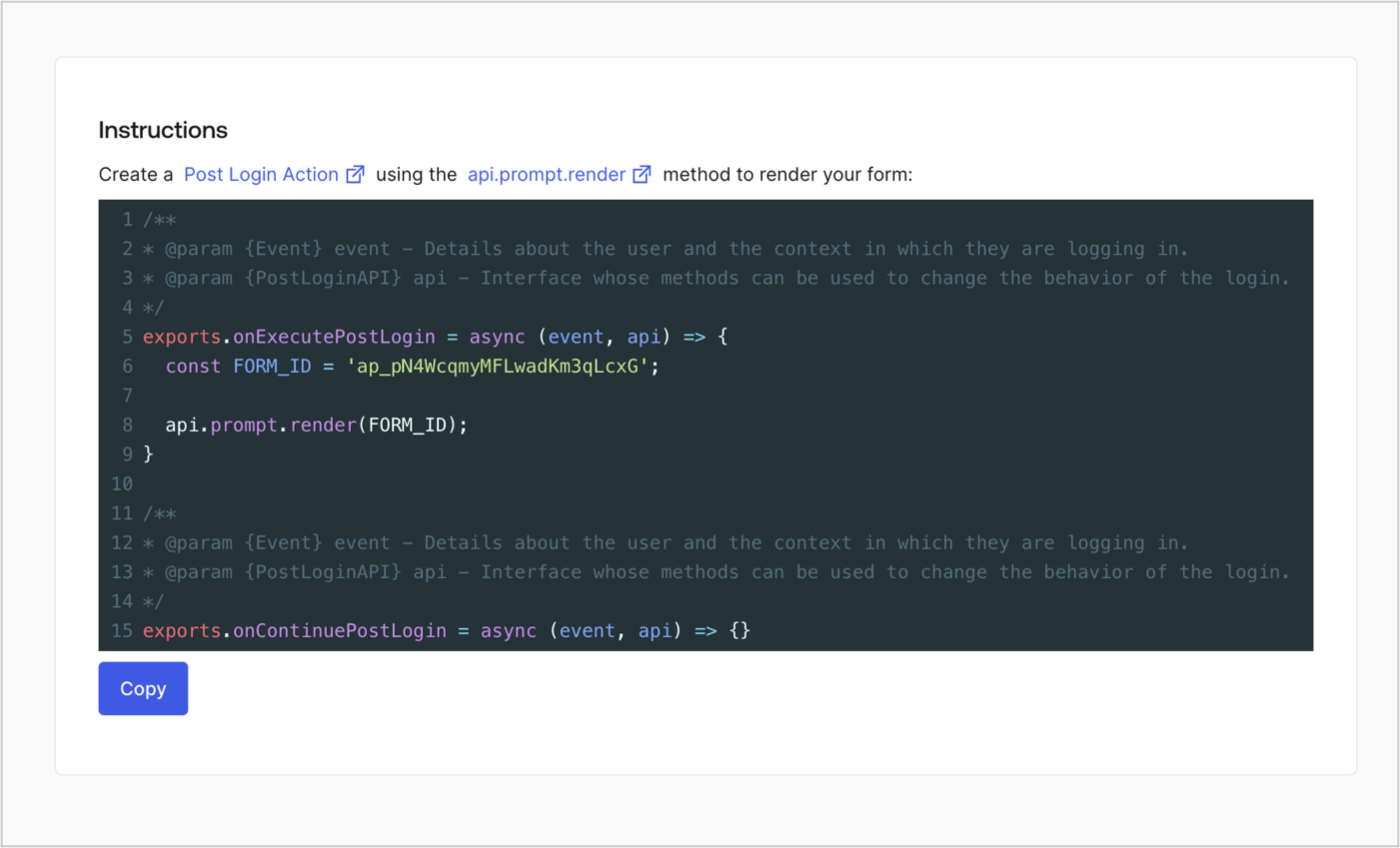
Retrieve the form render code to visually render the form with a custom Post Login Action by following these steps:

* From the Form editor, select **`<> Render`**.
* Select **Copy**.
<Frame>
  <img src="https://mintcdn.com/docs-staging-chore-myaccount-api-autoupdate/nuDe4v-q_ZNWMmoT/docs/images/cdy7uua7fh8z/2EIUzc539sq9lwoTKbjoJv/496a864c0fc44a782c9cadca119dbfb0/embed.png?fit=max&auto=format&n=nuDe4v-q_ZNWMmoT&q=85&s=995003cf24493f6ac3b8efc92fe63dea" alt="Dashboard > Actions > Forms > Form > Embed" data-og-width="1400" width="1400" data-og-height="848" height="848" data-path="docs/images/cdy7uua7fh8z/2EIUzc539sq9lwoTKbjoJv/496a864c0fc44a782c9cadca119dbfb0/embed.png" data-optimize="true" data-opv="3" srcset="https://mintcdn.com/docs-staging-chore-myaccount-api-autoupdate/nuDe4v-q_ZNWMmoT/docs/images/cdy7uua7fh8z/2EIUzc539sq9lwoTKbjoJv/496a864c0fc44a782c9cadca119dbfb0/embed.png?w=280&fit=max&auto=format&n=nuDe4v-q_ZNWMmoT&q=85&s=5128925603cef5f85a41d7c0d9d6a691 280w, https://mintcdn.com/docs-staging-chore-myaccount-api-autoupdate/nuDe4v-q_ZNWMmoT/docs/images/cdy7uua7fh8z/2EIUzc539sq9lwoTKbjoJv/496a864c0fc44a782c9cadca119dbfb0/embed.png?w=560&fit=max&auto=format&n=nuDe4v-q_ZNWMmoT&q=85&s=e034a6894cf619cb743868b92eea20c0 560w, https://mintcdn.com/docs-staging-chore-myaccount-api-autoupdate/nuDe4v-q_ZNWMmoT/docs/images/cdy7uua7fh8z/2EIUzc539sq9lwoTKbjoJv/496a864c0fc44a782c9cadca119dbfb0/embed.png?w=840&fit=max&auto=format&n=nuDe4v-q_ZNWMmoT&q=85&s=52a0e8c7773b04201474ee6cc9b2491a 840w, https://mintcdn.com/docs-staging-chore-myaccount-api-autoupdate/nuDe4v-q_ZNWMmoT/docs/images/cdy7uua7fh8z/2EIUzc539sq9lwoTKbjoJv/496a864c0fc44a782c9cadca119dbfb0/embed.png?w=1100&fit=max&auto=format&n=nuDe4v-q_ZNWMmoT&q=85&s=a67dc66284b9cf955af070c09ba30871 1100w, https://mintcdn.com/docs-staging-chore-myaccount-api-autoupdate/nuDe4v-q_ZNWMmoT/docs/images/cdy7uua7fh8z/2EIUzc539sq9lwoTKbjoJv/496a864c0fc44a782c9cadca119dbfb0/embed.png?w=1650&fit=max&auto=format&n=nuDe4v-q_ZNWMmoT&q=85&s=73a56c78bf6f0ffa1858b8566bcde69b 1650w, https://mintcdn.com/docs-staging-chore-myaccount-api-autoupdate/nuDe4v-q_ZNWMmoT/docs/images/cdy7uua7fh8z/2EIUzc539sq9lwoTKbjoJv/496a864c0fc44a782c9cadca119dbfb0/embed.png?w=2500&fit=max&auto=format&n=nuDe4v-q_ZNWMmoT&q=85&s=d6d3375b1f14f9d2633b5542bf61691a 2500w" />
</Frame>

## Create a Post Login Action

Create a post-login Action to render your form by following these steps:

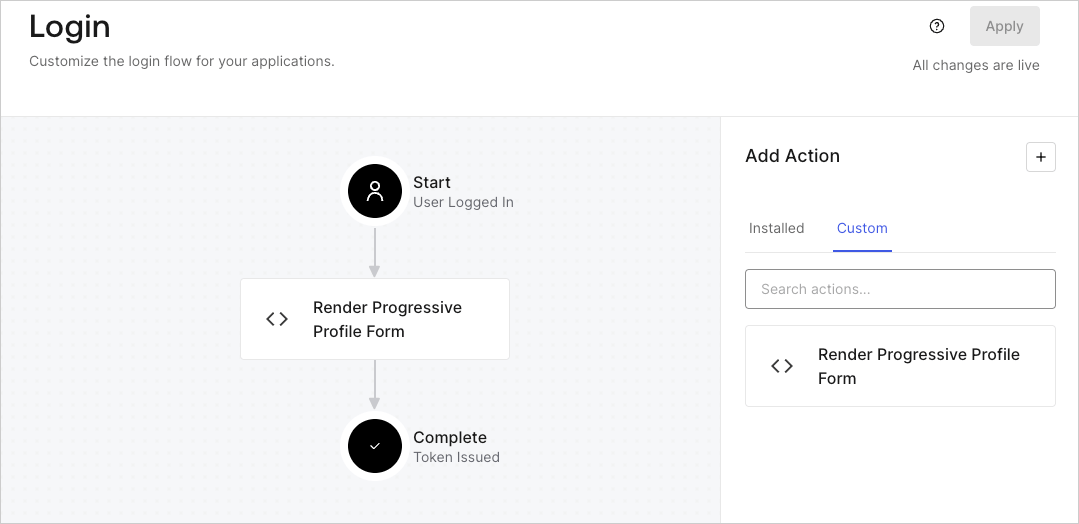
1. Navigate to **Auth0 Dashboard > Actions > Flows > Login.**
2. Select the **+** icon and select **Build from scratch**:

   * **Name**: Enter `Render Progressive Profile Form`.
   * **Trigger**: Select `Login / Post Login`.
   * **Runtime**: Select the recommended version.
3. Select **Create**.

To configure the post-login Action:

1. Delete the existing code from the Code editor.
2. Paste the form embed code into the Code editor.
3. Edit the code to define the conditional logic that will render the form.

   ```javascript lines theme={null}
   /**
   * @param {Event} event - Details about the user and the context in which they are logging in.
   * @param {PostLoginAPI} api - Interface whose methods can be used to change the behavior of the login.
   */
   exports.onExecutePostLogin = async (event, api) => {
     const FORM_ID = 'REPLACE_WITH_YOUR_FORM_ID';

     if (
       event.stats.logins_count > 2 &&
       !event.user.user_metadata.company_name &&
       !event.user.user_metadata.job_title
     ) {
       api.prompt.render(FORM_ID);
     }
   }

   exports.onContinuePostLogin = async (event, api) => { }
   ```

   <Callout icon="file-lines" color="#0EA5E9" iconType="regular">
     The example code above will render the form when a user has a login count > 2 and is missing the user metadata company\_name and job\_title properties.
   </Callout>
4. Select **Deploy.**
5. Drag and Drop the **Render Progressive Profile Form** Action to the **Login** flow.
   <Frame>
     <img src="https://mintcdn.com/docs-staging-chore-myaccount-api-autoupdate/fsZvFockSjnUvAgz/docs/images/cdy7uua7fh8z/1QjjZdpTqTxx012UDN4xk9/99fba5ef4068a5688f1762eea7f42976/renderprogessiveprofile.png?fit=max&auto=format&n=fsZvFockSjnUvAgz&q=85&s=ff36a350279c299485be5f8a37478004" alt="Dashboard > Forms > Use Cases Progressive Profile Login Action" data-og-width="1079" width="1079" data-og-height="524" height="524" data-path="docs/images/cdy7uua7fh8z/1QjjZdpTqTxx012UDN4xk9/99fba5ef4068a5688f1762eea7f42976/renderprogessiveprofile.png" data-optimize="true" data-opv="3" srcset="https://mintcdn.com/docs-staging-chore-myaccount-api-autoupdate/fsZvFockSjnUvAgz/docs/images/cdy7uua7fh8z/1QjjZdpTqTxx012UDN4xk9/99fba5ef4068a5688f1762eea7f42976/renderprogessiveprofile.png?w=280&fit=max&auto=format&n=fsZvFockSjnUvAgz&q=85&s=797b8f3165062906d2d8a1b1e62a7455 280w, https://mintcdn.com/docs-staging-chore-myaccount-api-autoupdate/fsZvFockSjnUvAgz/docs/images/cdy7uua7fh8z/1QjjZdpTqTxx012UDN4xk9/99fba5ef4068a5688f1762eea7f42976/renderprogessiveprofile.png?w=560&fit=max&auto=format&n=fsZvFockSjnUvAgz&q=85&s=1d24604c840866710488ede9c4ac1dbd 560w, https://mintcdn.com/docs-staging-chore-myaccount-api-autoupdate/fsZvFockSjnUvAgz/docs/images/cdy7uua7fh8z/1QjjZdpTqTxx012UDN4xk9/99fba5ef4068a5688f1762eea7f42976/renderprogessiveprofile.png?w=840&fit=max&auto=format&n=fsZvFockSjnUvAgz&q=85&s=3eeb714a1bf6e93f8bce8d823d74a85e 840w, https://mintcdn.com/docs-staging-chore-myaccount-api-autoupdate/fsZvFockSjnUvAgz/docs/images/cdy7uua7fh8z/1QjjZdpTqTxx012UDN4xk9/99fba5ef4068a5688f1762eea7f42976/renderprogessiveprofile.png?w=1100&fit=max&auto=format&n=fsZvFockSjnUvAgz&q=85&s=ef0e3b795bfa50215d51e7f94968e269 1100w, https://mintcdn.com/docs-staging-chore-myaccount-api-autoupdate/fsZvFockSjnUvAgz/docs/images/cdy7uua7fh8z/1QjjZdpTqTxx012UDN4xk9/99fba5ef4068a5688f1762eea7f42976/renderprogessiveprofile.png?w=1650&fit=max&auto=format&n=fsZvFockSjnUvAgz&q=85&s=d4ad3eca77bbaafc1c906267cf107cb8 1650w, https://mintcdn.com/docs-staging-chore-myaccount-api-autoupdate/fsZvFockSjnUvAgz/docs/images/cdy7uua7fh8z/1QjjZdpTqTxx012UDN4xk9/99fba5ef4068a5688f1762eea7f42976/renderprogessiveprofile.png?w=2500&fit=max&auto=format&n=fsZvFockSjnUvAgz&q=85&s=99125f195359d6b9839597a470fa3c55 2500w" />
   </Frame>
6. Select **Apply**.

### Test implementation

Test the implementation by following these steps:

1. Log in with an existing user whose login count is greater than 2 and their `user_metadata` attributes `company_name` and `job_title` have no values.
2. The post-login action in the Login flow will render the form and prompt for the information.
3. Select **Auth0 Dashboard > User Management > Users,** locate the user and verify that the `user_metadata` attributes `company_name` and `job_title` contain information.
