> ## Documentation Index
> Fetch the complete documentation index at: https://docs-staging-chore-myaccount-api-autoupdate.mintlify.site/llms.txt
> Use this file to discover all available pages before exploring further.

> Apprenez à configurer un formulaire de profil progressif à l’aide de Forms for Actions

# Cas d’utilisation : configurer un formulaire de profil progressif avec Forms

<Card title="Avant de commencer">
  1. Créez une [application machine-to-machine](/docs/fr-ca/get-started/auth0-overview/create-applications/machine-to-machine-apps) avec les portées suivantes activées :

  * `read:users`
  * `update:users`
  * `create:users`
  * `read:users_app_metadata`
  * `update:users_app_metadata`
  * `create:users_app_metadata`

  2. Ajoutez une [connexion Vault](/docs/fr-ca/customize/forms/vault) à l’aide des informations d’identification de l’application M2M.
</Card>

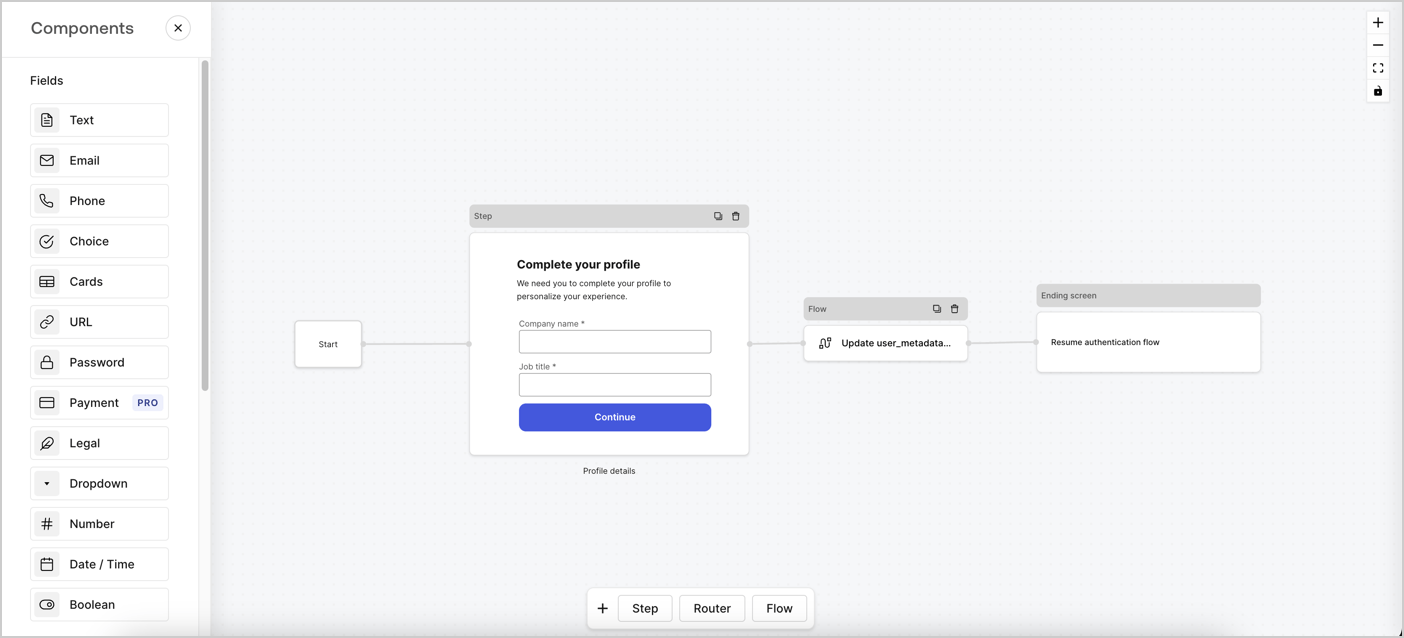
Forms for Actions vous permet de créer des flux de profil progressif afin de déterminer à quel moment demander aux utilisateurs de fournir les renseignements manquants, comme le nom de l’entreprise et le titre du poste, et de les stocker comme attributs `user_metadata`.
<Frame>
  <img src="https://mintcdn.com/docs-staging-chore-myaccount-api-autoupdate/chzCkjAmoOTh74XU/docs/images/cdy7uua7fh8z/xUx9YmnHvnAqL19JvNtNP/60dae88f893d4ebe8e3523421e960596/Progressive-profle-overview.png?fit=max&auto=format&n=chzCkjAmoOTh74XU&q=85&s=0cd89048d6d3cd5b1ffbaab3d1cc8ffe" alt="Dashboard > Actions > Forms > Form" data-og-width="1404" width="1404" data-og-height="638" height="638" data-path="docs/images/cdy7uua7fh8z/xUx9YmnHvnAqL19JvNtNP/60dae88f893d4ebe8e3523421e960596/Progressive-profle-overview.png" data-optimize="true" data-opv="3" srcset="https://mintcdn.com/docs-staging-chore-myaccount-api-autoupdate/chzCkjAmoOTh74XU/docs/images/cdy7uua7fh8z/xUx9YmnHvnAqL19JvNtNP/60dae88f893d4ebe8e3523421e960596/Progressive-profle-overview.png?w=280&fit=max&auto=format&n=chzCkjAmoOTh74XU&q=85&s=f4982781b0aaacc855dce44e6c7c6335 280w, https://mintcdn.com/docs-staging-chore-myaccount-api-autoupdate/chzCkjAmoOTh74XU/docs/images/cdy7uua7fh8z/xUx9YmnHvnAqL19JvNtNP/60dae88f893d4ebe8e3523421e960596/Progressive-profle-overview.png?w=560&fit=max&auto=format&n=chzCkjAmoOTh74XU&q=85&s=1d4265c1a0f4e377499078cae33c35eb 560w, https://mintcdn.com/docs-staging-chore-myaccount-api-autoupdate/chzCkjAmoOTh74XU/docs/images/cdy7uua7fh8z/xUx9YmnHvnAqL19JvNtNP/60dae88f893d4ebe8e3523421e960596/Progressive-profle-overview.png?w=840&fit=max&auto=format&n=chzCkjAmoOTh74XU&q=85&s=a6d7d4ecc4aeca32e94c32810618cf38 840w, https://mintcdn.com/docs-staging-chore-myaccount-api-autoupdate/chzCkjAmoOTh74XU/docs/images/cdy7uua7fh8z/xUx9YmnHvnAqL19JvNtNP/60dae88f893d4ebe8e3523421e960596/Progressive-profle-overview.png?w=1100&fit=max&auto=format&n=chzCkjAmoOTh74XU&q=85&s=47a0b398435911a903aab6acbd65cc98 1100w, https://mintcdn.com/docs-staging-chore-myaccount-api-autoupdate/chzCkjAmoOTh74XU/docs/images/cdy7uua7fh8z/xUx9YmnHvnAqL19JvNtNP/60dae88f893d4ebe8e3523421e960596/Progressive-profle-overview.png?w=1650&fit=max&auto=format&n=chzCkjAmoOTh74XU&q=85&s=4553739acbf5a46a6180954eed490b39 1650w, https://mintcdn.com/docs-staging-chore-myaccount-api-autoupdate/chzCkjAmoOTh74XU/docs/images/cdy7uua7fh8z/xUx9YmnHvnAqL19JvNtNP/60dae88f893d4ebe8e3523421e960596/Progressive-profle-overview.png?w=2500&fit=max&auto=format&n=chzCkjAmoOTh74XU&q=85&s=074ec3a3ec1388364e806de23e69b605 2500w" />
</Frame>

Les sections ci-dessous expliquent comment créer un formulaire de profil progressif à l’aide de nœuds et de flux, ainsi que les étapes à suivre pour ajouter votre formulaire à une [Action Post Login](/docs/fr-ca/customize/actions/explore-triggers/signup-and-login-triggers/login-trigger).

<h2 id="create-a-form-from-scratch">
  Créer un formulaire à partir de zéro
</h2>

Suivez ces étapes pour créer un formulaire et recueillir des renseignements :

1. Ouvrez l’éditeur de formulaires en sélectionnant **Auth0 Dashboard > Actions > Forms.**
2. Sélectionnez **Create Form** > **Start from scratch**.

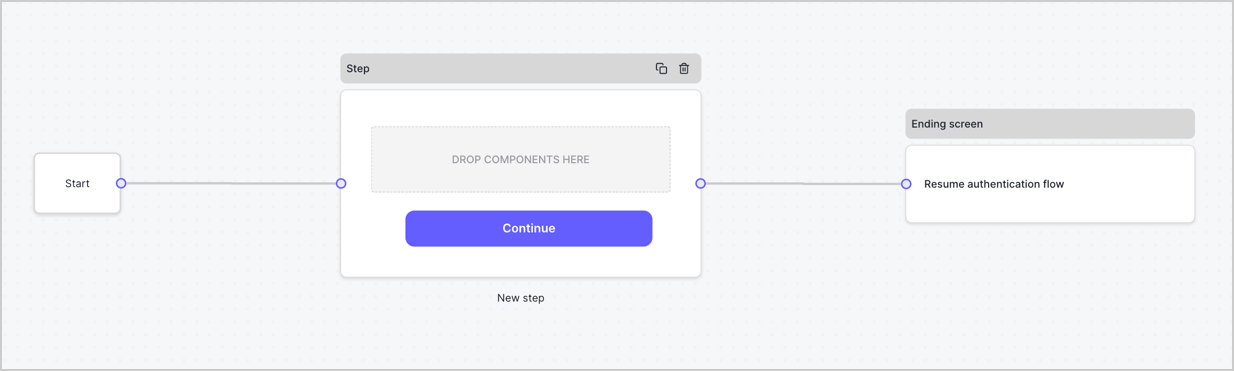
Par défaut, un nouveau formulaire contient un nœud Start, un nœud Step et un nœud Ending screen.
<Frame>
  <img src="https://mintcdn.com/docs-staging-chore-myaccount-api-autoupdate/XSZIwv0-vQPlgEcO/docs/images/cdy7uua7fh8z/2TZ9jSjgEcARFpULI6hz4R/a4319a1bd482f2ee5cc23100fdb2f42c/New-form-Forms-for-action-use-case.png?fit=max&auto=format&n=XSZIwv0-vQPlgEcO&q=85&s=fe4547d8d2a619f45dbfb09783ebe5da" alt="Dashboard > Forms > Cas d’utilisation > Formulaire" data-og-width="1234" width="1234" data-og-height="371" height="371" data-path="docs/images/cdy7uua7fh8z/2TZ9jSjgEcARFpULI6hz4R/a4319a1bd482f2ee5cc23100fdb2f42c/New-form-Forms-for-action-use-case.png" data-optimize="true" data-opv="3" srcset="https://mintcdn.com/docs-staging-chore-myaccount-api-autoupdate/XSZIwv0-vQPlgEcO/docs/images/cdy7uua7fh8z/2TZ9jSjgEcARFpULI6hz4R/a4319a1bd482f2ee5cc23100fdb2f42c/New-form-Forms-for-action-use-case.png?w=280&fit=max&auto=format&n=XSZIwv0-vQPlgEcO&q=85&s=78911f814a627fc432f412310e1a31cc 280w, https://mintcdn.com/docs-staging-chore-myaccount-api-autoupdate/XSZIwv0-vQPlgEcO/docs/images/cdy7uua7fh8z/2TZ9jSjgEcARFpULI6hz4R/a4319a1bd482f2ee5cc23100fdb2f42c/New-form-Forms-for-action-use-case.png?w=560&fit=max&auto=format&n=XSZIwv0-vQPlgEcO&q=85&s=742b733d40399d44a140a73d77f16114 560w, https://mintcdn.com/docs-staging-chore-myaccount-api-autoupdate/XSZIwv0-vQPlgEcO/docs/images/cdy7uua7fh8z/2TZ9jSjgEcARFpULI6hz4R/a4319a1bd482f2ee5cc23100fdb2f42c/New-form-Forms-for-action-use-case.png?w=840&fit=max&auto=format&n=XSZIwv0-vQPlgEcO&q=85&s=54adb6d457a7f25c25c8204d74e8e73e 840w, https://mintcdn.com/docs-staging-chore-myaccount-api-autoupdate/XSZIwv0-vQPlgEcO/docs/images/cdy7uua7fh8z/2TZ9jSjgEcARFpULI6hz4R/a4319a1bd482f2ee5cc23100fdb2f42c/New-form-Forms-for-action-use-case.png?w=1100&fit=max&auto=format&n=XSZIwv0-vQPlgEcO&q=85&s=155493b1e7a9f2b9da15fe2b2530f248 1100w, https://mintcdn.com/docs-staging-chore-myaccount-api-autoupdate/XSZIwv0-vQPlgEcO/docs/images/cdy7uua7fh8z/2TZ9jSjgEcARFpULI6hz4R/a4319a1bd482f2ee5cc23100fdb2f42c/New-form-Forms-for-action-use-case.png?w=1650&fit=max&auto=format&n=XSZIwv0-vQPlgEcO&q=85&s=5d27b4c94c47cd0cfd557abbe1ce850c 1650w, https://mintcdn.com/docs-staging-chore-myaccount-api-autoupdate/XSZIwv0-vQPlgEcO/docs/images/cdy7uua7fh8z/2TZ9jSjgEcARFpULI6hz4R/a4319a1bd482f2ee5cc23100fdb2f42c/New-form-Forms-for-action-use-case.png?w=2500&fit=max&auto=format&n=XSZIwv0-vQPlgEcO&q=85&s=4bca5d7daf4c8eec01ecb1913f7373cd 2500w" />
</Frame>

<h3 id="configure-the-step-node">
  Configurer le nœud Step
</h3>

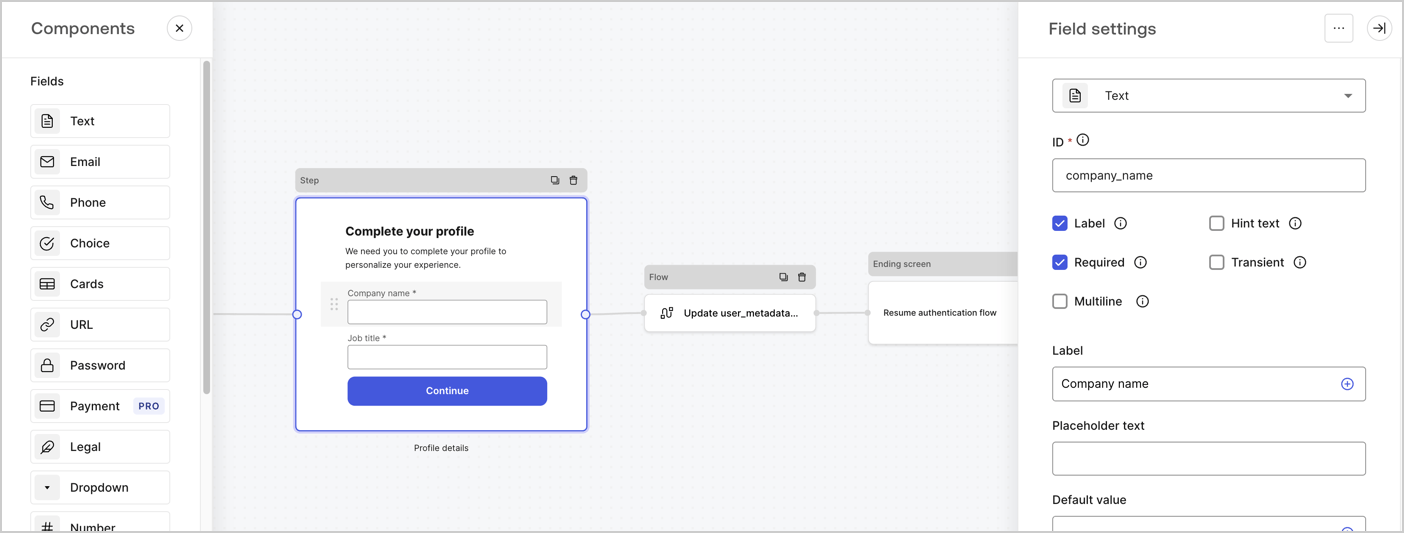
Le nœud Step est l’interface graphique que voient les utilisateurs. Ajoutez des [champs](/docs/fr-ca/customize/forms/nodes-and-components) au nœud Step pour recueillir le nom de l’entreprise et l’intitulé du poste de l’utilisateur en suivant ces étapes :

1. Faites glisser un champ **Rich text** du **menu Components** vers le nœud **Step**.

   * **Rich text** : Saisissez un message personnalisé.

     * **Exemple** : `Complétez votre profil ! Nous avons besoin de quelques renseignements pour personnaliser votre expérience.`
   * Sélectionnez **Enregistrer**.
2. Faites glisser un champ **Text** vers le nœud **Step**.

   * **ID** : Saisissez `company_name`.
   * **Label** : Cochez la case.
   * **Label** : Saisissez `Nom de l’entreprise`.
   * **Required** : Cochez la case.
   * Sélectionnez **Enregistrer**.
3. Faites glisser un champ **Text** vers le nœud **Step**.

   1. **ID** : Saisissez `job_title`.
   2. **Label** : Saisissez `Titre du poste`.
   3. **Label** : Cochez la case.
   4. **Required** : Cochez la case.
   5. Sélectionnez **Enregistrer**.
4. Sélectionnez **Publier** pour enregistrer.
<Frame>
  <img src="https://mintcdn.com/docs-staging-chore-myaccount-api-autoupdate/o1UR_wVpl9p5EHsG/docs/images/cdy7uua7fh8z/6H1lRzwKyYioQyQJ9MtIoM/aa248e92fc028a68a5b92ff361a11644/progressive-profile-step.png?fit=max&auto=format&n=o1UR_wVpl9p5EHsG&q=85&s=0d3dfb5a911a529f96f4c04c106d0a3c" alt="Dashboard > Actions > Forms > Form > nœud Step" data-og-width="1404" width="1404" data-og-height="533" height="533" data-path="docs/images/cdy7uua7fh8z/6H1lRzwKyYioQyQJ9MtIoM/aa248e92fc028a68a5b92ff361a11644/progressive-profile-step.png" data-optimize="true" data-opv="3" srcset="https://mintcdn.com/docs-staging-chore-myaccount-api-autoupdate/o1UR_wVpl9p5EHsG/docs/images/cdy7uua7fh8z/6H1lRzwKyYioQyQJ9MtIoM/aa248e92fc028a68a5b92ff361a11644/progressive-profile-step.png?w=280&fit=max&auto=format&n=o1UR_wVpl9p5EHsG&q=85&s=c30ddba15fb3fc32e1818240ddb64956 280w, https://mintcdn.com/docs-staging-chore-myaccount-api-autoupdate/o1UR_wVpl9p5EHsG/docs/images/cdy7uua7fh8z/6H1lRzwKyYioQyQJ9MtIoM/aa248e92fc028a68a5b92ff361a11644/progressive-profile-step.png?w=560&fit=max&auto=format&n=o1UR_wVpl9p5EHsG&q=85&s=c6e63239dae2ce2c16ea2adb02cba32b 560w, https://mintcdn.com/docs-staging-chore-myaccount-api-autoupdate/o1UR_wVpl9p5EHsG/docs/images/cdy7uua7fh8z/6H1lRzwKyYioQyQJ9MtIoM/aa248e92fc028a68a5b92ff361a11644/progressive-profile-step.png?w=840&fit=max&auto=format&n=o1UR_wVpl9p5EHsG&q=85&s=3dd857e4439cc2828471303f011d5133 840w, https://mintcdn.com/docs-staging-chore-myaccount-api-autoupdate/o1UR_wVpl9p5EHsG/docs/images/cdy7uua7fh8z/6H1lRzwKyYioQyQJ9MtIoM/aa248e92fc028a68a5b92ff361a11644/progressive-profile-step.png?w=1100&fit=max&auto=format&n=o1UR_wVpl9p5EHsG&q=85&s=bdeeb6f14571bbc5ff73aceb9b1e3719 1100w, https://mintcdn.com/docs-staging-chore-myaccount-api-autoupdate/o1UR_wVpl9p5EHsG/docs/images/cdy7uua7fh8z/6H1lRzwKyYioQyQJ9MtIoM/aa248e92fc028a68a5b92ff361a11644/progressive-profile-step.png?w=1650&fit=max&auto=format&n=o1UR_wVpl9p5EHsG&q=85&s=90a29a727337bac70f76ae617edd1a38 1650w, https://mintcdn.com/docs-staging-chore-myaccount-api-autoupdate/o1UR_wVpl9p5EHsG/docs/images/cdy7uua7fh8z/6H1lRzwKyYioQyQJ9MtIoM/aa248e92fc028a68a5b92ff361a11644/progressive-profile-step.png?w=2500&fit=max&auto=format&n=o1UR_wVpl9p5EHsG&q=85&s=8da67a430dffc230239ddfd27cbc5766 2500w" />
</Frame>

<h3 id="configure-the-flow-node">
  Configurer le nœud de flux
</h3>

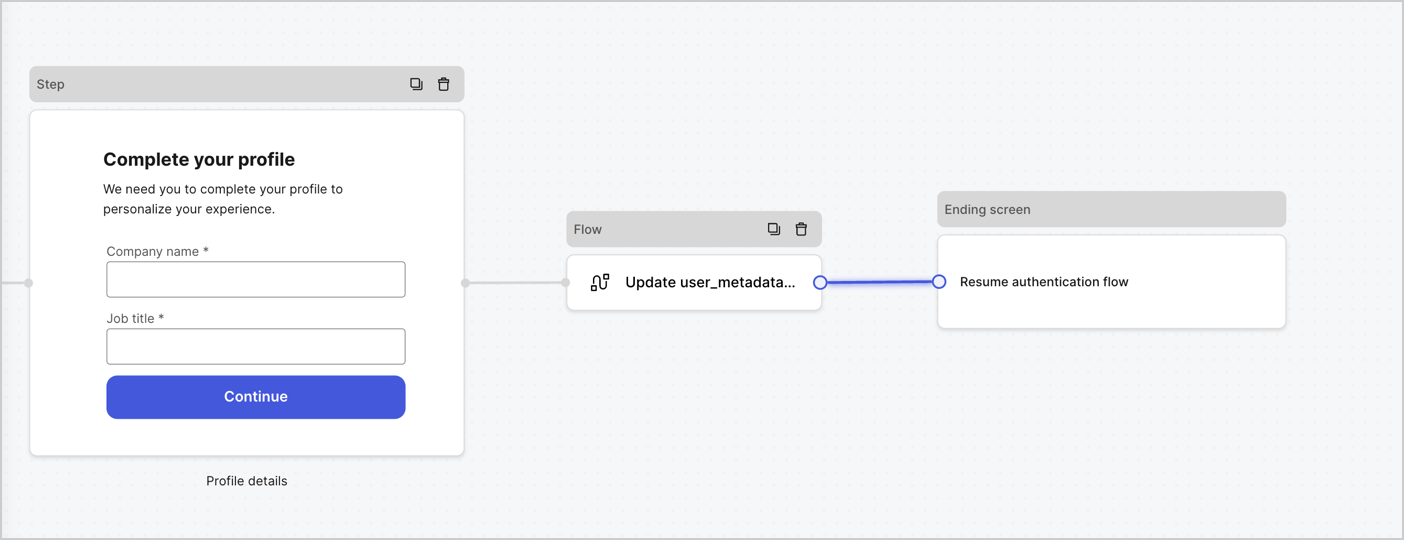
Ajoutez un nœud **Flow** après le nœud **Step** pour mettre à jour `user_metadata` et reprendre le flux d’authentification en suivant ces étapes :

1. Sélectionnez **Flow** au bas de l’éditeur de formulaires.
2. Supprimez le lien existant entre les nœuds **Step** et **Ending Screen**.
3. Sélectionnez le nouveau **Flow** > **Click to add a flow** > **Create a new flow.**

   * Saisissez `Update user_metadata` dans le champ **Name**.
   * Sélectionnez **Create**.
   * Sélectionnez **Save**.
4. Reliez le nœud **Flow** aux nœuds **Step** et **Ending Screen**, comme illustré ci-dessous.
5. Sélectionnez **Publish** pour enregistrer.
<Frame>
  <img src="https://mintcdn.com/docs-staging-chore-myaccount-api-autoupdate/gX70I896qXZ9LmsE/docs/images/cdy7uua7fh8z/5C91DaWn4LGtJT9BF87ssu/095171d0c452a287c44bfde12fd6d13f/link-nodes.png?fit=max&auto=format&n=gX70I896qXZ9LmsE&q=85&s=6b23dda35a877930750194030bbf5c21" alt="Dashboard > Actions > Forms > Form" data-og-width="1404" width="1404" data-og-height="540" height="540" data-path="docs/images/cdy7uua7fh8z/5C91DaWn4LGtJT9BF87ssu/095171d0c452a287c44bfde12fd6d13f/link-nodes.png" data-optimize="true" data-opv="3" srcset="https://mintcdn.com/docs-staging-chore-myaccount-api-autoupdate/gX70I896qXZ9LmsE/docs/images/cdy7uua7fh8z/5C91DaWn4LGtJT9BF87ssu/095171d0c452a287c44bfde12fd6d13f/link-nodes.png?w=280&fit=max&auto=format&n=gX70I896qXZ9LmsE&q=85&s=f1c7e1691a06f155171ecf6073d24baf 280w, https://mintcdn.com/docs-staging-chore-myaccount-api-autoupdate/gX70I896qXZ9LmsE/docs/images/cdy7uua7fh8z/5C91DaWn4LGtJT9BF87ssu/095171d0c452a287c44bfde12fd6d13f/link-nodes.png?w=560&fit=max&auto=format&n=gX70I896qXZ9LmsE&q=85&s=90844a23b5670aa3fcd5b855ddce753b 560w, https://mintcdn.com/docs-staging-chore-myaccount-api-autoupdate/gX70I896qXZ9LmsE/docs/images/cdy7uua7fh8z/5C91DaWn4LGtJT9BF87ssu/095171d0c452a287c44bfde12fd6d13f/link-nodes.png?w=840&fit=max&auto=format&n=gX70I896qXZ9LmsE&q=85&s=7921319a65e1fa8cd34a34024ccbbf68 840w, https://mintcdn.com/docs-staging-chore-myaccount-api-autoupdate/gX70I896qXZ9LmsE/docs/images/cdy7uua7fh8z/5C91DaWn4LGtJT9BF87ssu/095171d0c452a287c44bfde12fd6d13f/link-nodes.png?w=1100&fit=max&auto=format&n=gX70I896qXZ9LmsE&q=85&s=a35ee1ee5957a8f7d4c480305bea8452 1100w, https://mintcdn.com/docs-staging-chore-myaccount-api-autoupdate/gX70I896qXZ9LmsE/docs/images/cdy7uua7fh8z/5C91DaWn4LGtJT9BF87ssu/095171d0c452a287c44bfde12fd6d13f/link-nodes.png?w=1650&fit=max&auto=format&n=gX70I896qXZ9LmsE&q=85&s=f5affc8d5a119d361cffd7676c6e08e6 1650w, https://mintcdn.com/docs-staging-chore-myaccount-api-autoupdate/gX70I896qXZ9LmsE/docs/images/cdy7uua7fh8z/5C91DaWn4LGtJT9BF87ssu/095171d0c452a287c44bfde12fd6d13f/link-nodes.png?w=2500&fit=max&auto=format&n=gX70I896qXZ9LmsE&q=85&s=1391fbd490030df8f2521ae76bfabc8e 2500w" />
</Frame>

Ajoutez une action Auth0 **Update user** au flux en suivant ces étapes :

1. Sélectionnez le flux **Update user\_metadata**, puis sélectionnez **Edit Flow** pour ouvrir l’éditeur de flux dans un nouvel onglet.
2. Sous l’action **Start**, sélectionnez l’icône **+** pour ajouter une action **Update user**. Remplissez les champs ci-dessous, puis sélectionnez **Save** pour continuer.

   * **Connection** : Dans la liste déroulante, sélectionnez la connexion Vault de votre application M2M.

   * **User ID** : Saisissez `{{context.user.user_id}}`.

   * **Body** : Copiez-collez le code suivant pour mettre à jour `user_metadata` avec les propriétés `job_title` et `company_name`.

     ```json lines theme={null}
     {
        "user_metadata": {
           "job_title": "{{fields.job_title}}",
           "company_name": "{{fields.company_name}}"
        }
     }
     ```

   * Sélectionnez **Save**.
3. Sélectionnez **Publish** pour enregistrer.

<Frame>
  <img src="https://mintcdn.com/docs-staging-chore-myaccount-api-autoupdate/NCktBbrAV1W5T8qn/docs/images/cdy7uua7fh8z/65Jx4W5oIZJyyvA8z4HqIx/0661b1a8ca6361c54fc4fef07ba59f0b/update-user.png?fit=max&auto=format&n=NCktBbrAV1W5T8qn&q=85&s=669f25594b463dae45b9004ffba038a8" alt="Dashboard > Actions > Forms > Flows" data-og-width="1404" width="1404" data-og-height="244" height="244" data-path="docs/images/cdy7uua7fh8z/65Jx4W5oIZJyyvA8z4HqIx/0661b1a8ca6361c54fc4fef07ba59f0b/update-user.png" data-optimize="true" data-opv="3" srcset="https://mintcdn.com/docs-staging-chore-myaccount-api-autoupdate/NCktBbrAV1W5T8qn/docs/images/cdy7uua7fh8z/65Jx4W5oIZJyyvA8z4HqIx/0661b1a8ca6361c54fc4fef07ba59f0b/update-user.png?w=280&fit=max&auto=format&n=NCktBbrAV1W5T8qn&q=85&s=ef9f9c5dee43889c21d638938a108b35 280w, https://mintcdn.com/docs-staging-chore-myaccount-api-autoupdate/NCktBbrAV1W5T8qn/docs/images/cdy7uua7fh8z/65Jx4W5oIZJyyvA8z4HqIx/0661b1a8ca6361c54fc4fef07ba59f0b/update-user.png?w=560&fit=max&auto=format&n=NCktBbrAV1W5T8qn&q=85&s=4b23fd6cb6e0ab964d14e3643919c1fe 560w, https://mintcdn.com/docs-staging-chore-myaccount-api-autoupdate/NCktBbrAV1W5T8qn/docs/images/cdy7uua7fh8z/65Jx4W5oIZJyyvA8z4HqIx/0661b1a8ca6361c54fc4fef07ba59f0b/update-user.png?w=840&fit=max&auto=format&n=NCktBbrAV1W5T8qn&q=85&s=c5a79a2d87de363203de1473692a9a89 840w, https://mintcdn.com/docs-staging-chore-myaccount-api-autoupdate/NCktBbrAV1W5T8qn/docs/images/cdy7uua7fh8z/65Jx4W5oIZJyyvA8z4HqIx/0661b1a8ca6361c54fc4fef07ba59f0b/update-user.png?w=1100&fit=max&auto=format&n=NCktBbrAV1W5T8qn&q=85&s=d89b9798825947a2d371a8f4437bd17b 1100w, https://mintcdn.com/docs-staging-chore-myaccount-api-autoupdate/NCktBbrAV1W5T8qn/docs/images/cdy7uua7fh8z/65Jx4W5oIZJyyvA8z4HqIx/0661b1a8ca6361c54fc4fef07ba59f0b/update-user.png?w=1650&fit=max&auto=format&n=NCktBbrAV1W5T8qn&q=85&s=ad1a9d36f15234bf9925c291c2ef77a3 1650w, https://mintcdn.com/docs-staging-chore-myaccount-api-autoupdate/NCktBbrAV1W5T8qn/docs/images/cdy7uua7fh8z/65Jx4W5oIZJyyvA8z4HqIx/0661b1a8ca6361c54fc4fef07ba59f0b/update-user.png?w=2500&fit=max&auto=format&n=NCktBbrAV1W5T8qn&q=85&s=870e23ccbfe4ae8c3f535ab6dbe11882 2500w" />
</Frame>

<h3 id="retrieve-the-form-render-code">
  Récupérer le code de rendu du formulaire
</h3>

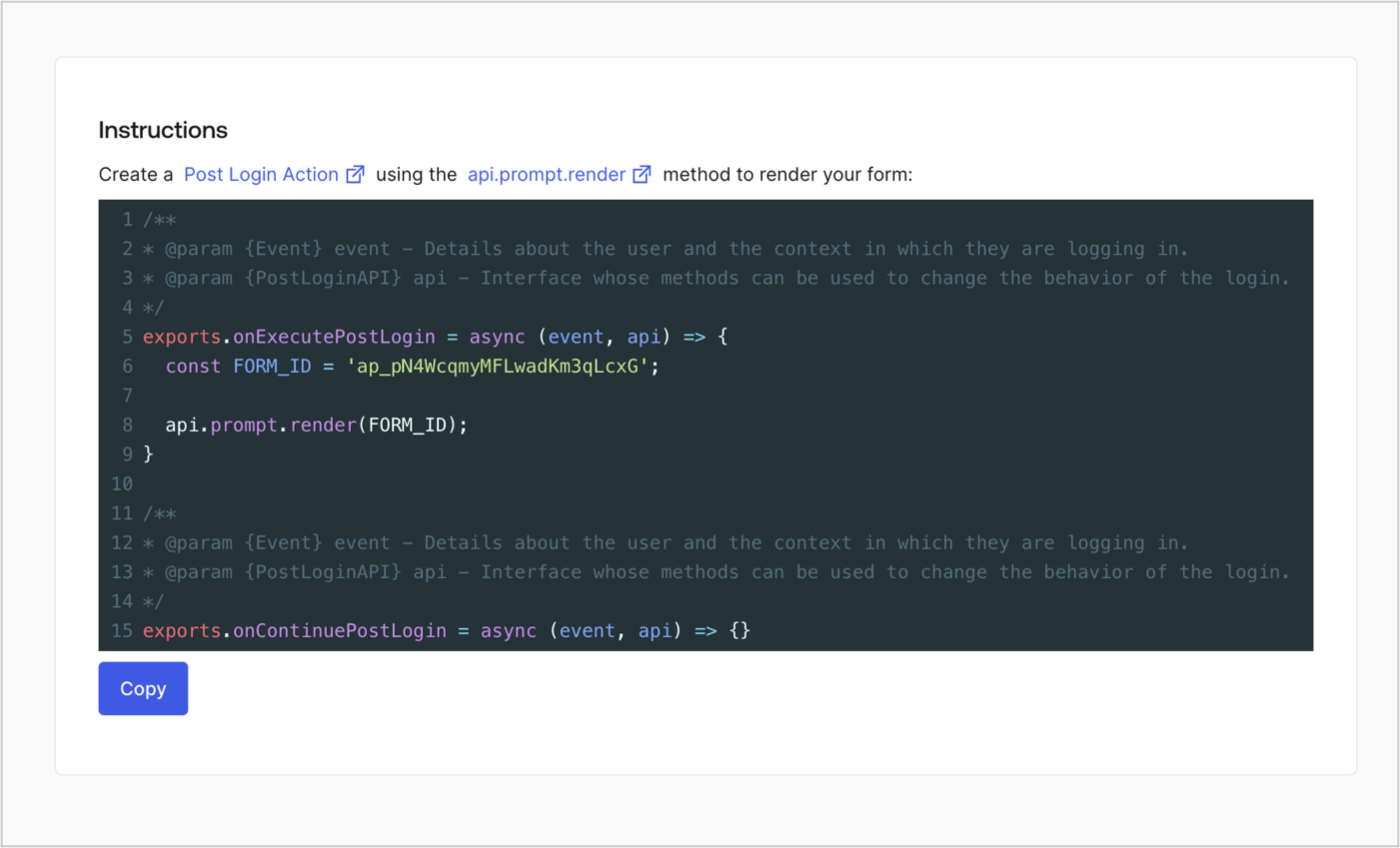
Récupérez le code de rendu du formulaire pour l’afficher à l’aide d’une Action Post Login personnalisée en suivant ces étapes :

* Dans l’éditeur de formulaires, sélectionnez **`<> Render`**.
* Sélectionnez **Copy**.
<Frame>
  <img src="https://mintcdn.com/docs-staging-chore-myaccount-api-autoupdate/nuDe4v-q_ZNWMmoT/docs/images/cdy7uua7fh8z/2EIUzc539sq9lwoTKbjoJv/496a864c0fc44a782c9cadca119dbfb0/embed.png?fit=max&auto=format&n=nuDe4v-q_ZNWMmoT&q=85&s=995003cf24493f6ac3b8efc92fe63dea" alt="Dashboard > Actions > Forms > Form > Embed" data-og-width="1400" width="1400" data-og-height="848" height="848" data-path="docs/images/cdy7uua7fh8z/2EIUzc539sq9lwoTKbjoJv/496a864c0fc44a782c9cadca119dbfb0/embed.png" data-optimize="true" data-opv="3" srcset="https://mintcdn.com/docs-staging-chore-myaccount-api-autoupdate/nuDe4v-q_ZNWMmoT/docs/images/cdy7uua7fh8z/2EIUzc539sq9lwoTKbjoJv/496a864c0fc44a782c9cadca119dbfb0/embed.png?w=280&fit=max&auto=format&n=nuDe4v-q_ZNWMmoT&q=85&s=5128925603cef5f85a41d7c0d9d6a691 280w, https://mintcdn.com/docs-staging-chore-myaccount-api-autoupdate/nuDe4v-q_ZNWMmoT/docs/images/cdy7uua7fh8z/2EIUzc539sq9lwoTKbjoJv/496a864c0fc44a782c9cadca119dbfb0/embed.png?w=560&fit=max&auto=format&n=nuDe4v-q_ZNWMmoT&q=85&s=e034a6894cf619cb743868b92eea20c0 560w, https://mintcdn.com/docs-staging-chore-myaccount-api-autoupdate/nuDe4v-q_ZNWMmoT/docs/images/cdy7uua7fh8z/2EIUzc539sq9lwoTKbjoJv/496a864c0fc44a782c9cadca119dbfb0/embed.png?w=840&fit=max&auto=format&n=nuDe4v-q_ZNWMmoT&q=85&s=52a0e8c7773b04201474ee6cc9b2491a 840w, https://mintcdn.com/docs-staging-chore-myaccount-api-autoupdate/nuDe4v-q_ZNWMmoT/docs/images/cdy7uua7fh8z/2EIUzc539sq9lwoTKbjoJv/496a864c0fc44a782c9cadca119dbfb0/embed.png?w=1100&fit=max&auto=format&n=nuDe4v-q_ZNWMmoT&q=85&s=a67dc66284b9cf955af070c09ba30871 1100w, https://mintcdn.com/docs-staging-chore-myaccount-api-autoupdate/nuDe4v-q_ZNWMmoT/docs/images/cdy7uua7fh8z/2EIUzc539sq9lwoTKbjoJv/496a864c0fc44a782c9cadca119dbfb0/embed.png?w=1650&fit=max&auto=format&n=nuDe4v-q_ZNWMmoT&q=85&s=73a56c78bf6f0ffa1858b8566bcde69b 1650w, https://mintcdn.com/docs-staging-chore-myaccount-api-autoupdate/nuDe4v-q_ZNWMmoT/docs/images/cdy7uua7fh8z/2EIUzc539sq9lwoTKbjoJv/496a864c0fc44a782c9cadca119dbfb0/embed.png?w=2500&fit=max&auto=format&n=nuDe4v-q_ZNWMmoT&q=85&s=d6d3375b1f14f9d2633b5542bf61691a 2500w" />
</Frame>

<h2 id="create-a-post-login-action">
  Créer une Action Post Login
</h2>

Créez une Action post-login pour afficher votre formulaire en suivant ces étapes :

1. Accédez à **Auth0 Dashboard > Actions > Flows > Login.**
2. Sélectionnez l’icône **+**, puis **Build from scratch** :

   * **Name** : Entrez `Render Progressive Profile Form`.
   * **Trigger** : Sélectionnez `Login / Post Login`.
   * **Runtime** : Sélectionnez la version recommandée.
3. Sélectionnez **Create**.

Pour configurer l’Action post-login :

1. Supprimez le code existant dans l’éditeur Code.
2. Collez le code d’intégration du formulaire dans l’éditeur Code.
3. Modifiez le code pour définir la logique conditionnelle qui affichera le formulaire.

   ```javascript lines theme={null}
   /**
   * @param {Event} event - Détails sur l’utilisateur et le contexte dans lequel il se connecte.
   * @param {PostLoginAPI} api - Interface dont les méthodes peuvent être utilisées pour modifier le comportement de la connexion.
   */
   exports.onExecutePostLogin = async (event, api) => {
     const FORM_ID = 'REPLACE_WITH_YOUR_FORM_ID';

     if (
       event.stats.logins_count > 2 &&
       !event.user.user_metadata.company_name &&
       !event.user.user_metadata.job_title
     ) {
       api.prompt.render(FORM_ID);
     }
   }

   exports.onContinuePostLogin = async (event, api) => { }
   ```

   <Callout icon="file-lines" color="#0EA5E9" iconType="regular">
     L’exemple de code ci-dessus affiche le formulaire lorsqu’un utilisateur a un nombre de connexions > 2 et que les propriétés de métadonnées utilisateur company\_name et job\_title sont absentes.
   </Callout>
4. Sélectionnez **Deploy.**
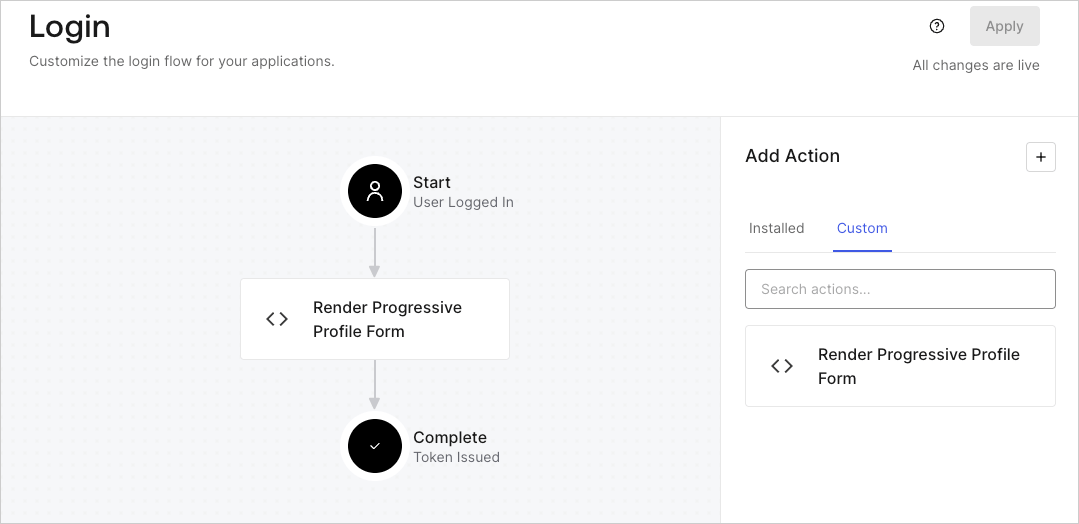
5. Glissez-déposez l’Action **Render Progressive Profile Form** dans le **Login flow**.
   <Frame>
     <img src="https://mintcdn.com/docs-staging-chore-myaccount-api-autoupdate/fsZvFockSjnUvAgz/docs/images/cdy7uua7fh8z/1QjjZdpTqTxx012UDN4xk9/99fba5ef4068a5688f1762eea7f42976/renderprogessiveprofile.png?fit=max&auto=format&n=fsZvFockSjnUvAgz&q=85&s=ff36a350279c299485be5f8a37478004" alt="Dashboard > Forms > Use Cases Progressive Profile Login Action" data-og-width="1079" width="1079" data-og-height="524" height="524" data-path="docs/images/cdy7uua7fh8z/1QjjZdpTqTxx012UDN4xk9/99fba5ef4068a5688f1762eea7f42976/renderprogessiveprofile.png" data-optimize="true" data-opv="3" srcset="https://mintcdn.com/docs-staging-chore-myaccount-api-autoupdate/fsZvFockSjnUvAgz/docs/images/cdy7uua7fh8z/1QjjZdpTqTxx012UDN4xk9/99fba5ef4068a5688f1762eea7f42976/renderprogessiveprofile.png?w=280&fit=max&auto=format&n=fsZvFockSjnUvAgz&q=85&s=797b8f3165062906d2d8a1b1e62a7455 280w, https://mintcdn.com/docs-staging-chore-myaccount-api-autoupdate/fsZvFockSjnUvAgz/docs/images/cdy7uua7fh8z/1QjjZdpTqTxx012UDN4xk9/99fba5ef4068a5688f1762eea7f42976/renderprogessiveprofile.png?w=560&fit=max&auto=format&n=fsZvFockSjnUvAgz&q=85&s=1d24604c840866710488ede9c4ac1dbd 560w, https://mintcdn.com/docs-staging-chore-myaccount-api-autoupdate/fsZvFockSjnUvAgz/docs/images/cdy7uua7fh8z/1QjjZdpTqTxx012UDN4xk9/99fba5ef4068a5688f1762eea7f42976/renderprogessiveprofile.png?w=840&fit=max&auto=format&n=fsZvFockSjnUvAgz&q=85&s=3eeb714a1bf6e93f8bce8d823d74a85e 840w, https://mintcdn.com/docs-staging-chore-myaccount-api-autoupdate/fsZvFockSjnUvAgz/docs/images/cdy7uua7fh8z/1QjjZdpTqTxx012UDN4xk9/99fba5ef4068a5688f1762eea7f42976/renderprogessiveprofile.png?w=1100&fit=max&auto=format&n=fsZvFockSjnUvAgz&q=85&s=ef0e3b795bfa50215d51e7f94968e269 1100w, https://mintcdn.com/docs-staging-chore-myaccount-api-autoupdate/fsZvFockSjnUvAgz/docs/images/cdy7uua7fh8z/1QjjZdpTqTxx012UDN4xk9/99fba5ef4068a5688f1762eea7f42976/renderprogessiveprofile.png?w=1650&fit=max&auto=format&n=fsZvFockSjnUvAgz&q=85&s=d4ad3eca77bbaafc1c906267cf107cb8 1650w, https://mintcdn.com/docs-staging-chore-myaccount-api-autoupdate/fsZvFockSjnUvAgz/docs/images/cdy7uua7fh8z/1QjjZdpTqTxx012UDN4xk9/99fba5ef4068a5688f1762eea7f42976/renderprogessiveprofile.png?w=2500&fit=max&auto=format&n=fsZvFockSjnUvAgz&q=85&s=99125f195359d6b9839597a470fa3c55 2500w" />
   </Frame>
6. Sélectionnez **Apply**.

<h3 id="test-implementation">
  Tester la mise en œuvre
</h3>

Testez la mise en œuvre en suivant ces étapes :

1. Connectez-vous avec un utilisateur existant dont le nombre de connexions est supérieur à 2 et dont les attributs `user_metadata` `company_name` et `job_title` sont vides.
2. L’action post-login du Login flow affichera le formulaire et demandera ces renseignements.
3. Sélectionnez **Auth0 Dashboard > User Management > Users,** repérez l’utilisateur et vérifiez que les attributs `user_metadata` `company_name` et `job_title` contiennent bien des renseignements.
