> ## Documentation Index
> Fetch the complete documentation index at: https://docs-staging-chore-myaccount-api-autoupdate.mintlify.site/llms.txt
> Use this file to discover all available pages before exploring further.

> Découvrez comment configurer un formulaire de mise à jour de politique à l’aide de Forms for Actions afin que les utilisateurs puissent examiner et accepter de nouvelles conditions d’utilisation ou des mises à jour de consentement.

# Cas d’utilisation : Configurer un formulaire de mise à jour de politique à l’aide de Forms

<Card title="Avant de commencer">
  1. Créez une [application Machine-to-Machine](/docs/fr-ca/get-started/auth0-overview/create-applications/machine-to-machine-apps) avec les scopes suivants activés :

  * `read:users`
  * `update:users`
  * `create:users`
  * `read:users_app_metadata`
  * `update:users_app_metadata`
  * `create:users_app_metadata`

  2. Ajoutez une [connexion Vault](/docs/fr-ca/customize/forms/vault) à l’aide des identifiants de l’application M2M.
</Card>

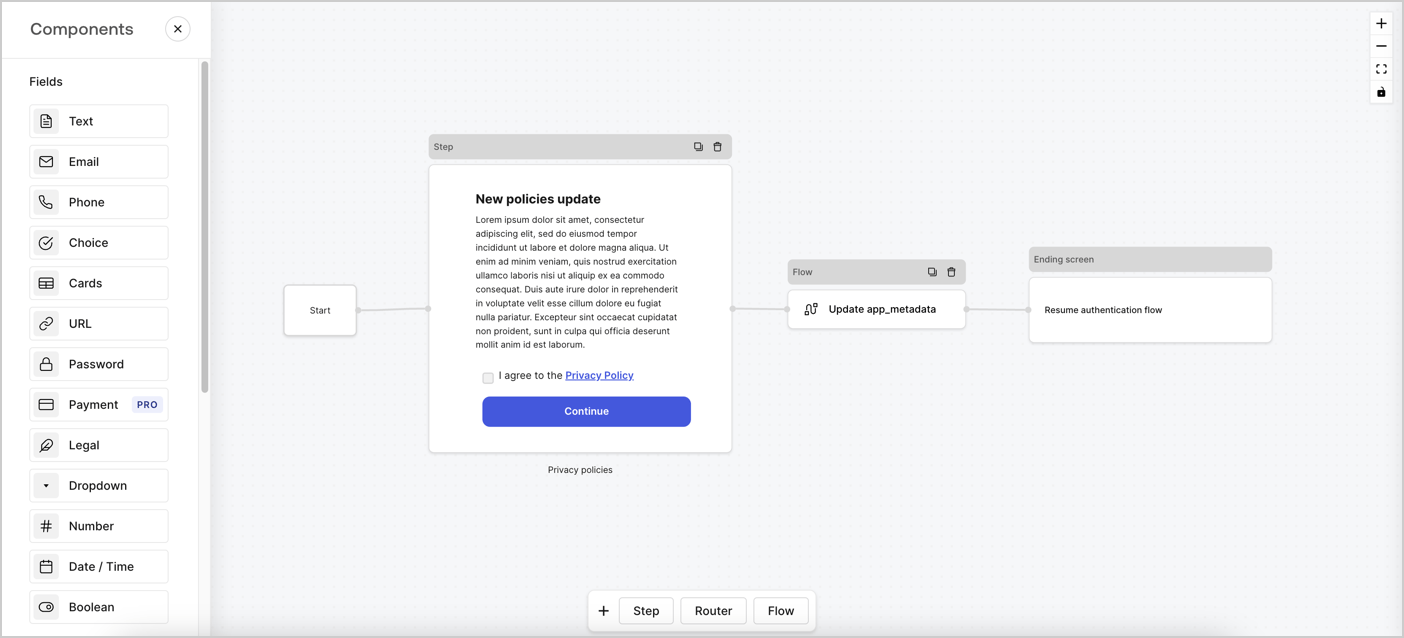
Forms for Actions vous permet de créer des flux personnalisés liés aux politiques de confidentialité et d’enregistrer le consentement dans l’objet `app_metadata`.
<Frame>
  <img src="https://mintcdn.com/docs-staging-chore-myaccount-api-autoupdate/o1UR_wVpl9p5EHsG/docs/images/cdy7uua7fh8z/6i68dMvHDTijfRmSgN1x8Q/ad900e7d4c0fb34645921435472b8684/privavy-policy-form.png?fit=max&auto=format&n=o1UR_wVpl9p5EHsG&q=85&s=ffd1f5cca23db8d664a9582782a68ba0" alt="Dashboard > Actions > Forms > Cas d’utilisation de politique de confidentialité" data-og-width="1404" width="1404" data-og-height="638" height="638" data-path="docs/images/cdy7uua7fh8z/6i68dMvHDTijfRmSgN1x8Q/ad900e7d4c0fb34645921435472b8684/privavy-policy-form.png" data-optimize="true" data-opv="3" srcset="https://mintcdn.com/docs-staging-chore-myaccount-api-autoupdate/o1UR_wVpl9p5EHsG/docs/images/cdy7uua7fh8z/6i68dMvHDTijfRmSgN1x8Q/ad900e7d4c0fb34645921435472b8684/privavy-policy-form.png?w=280&fit=max&auto=format&n=o1UR_wVpl9p5EHsG&q=85&s=31b288b8db2b1b0f6b956d4750e0480c 280w, https://mintcdn.com/docs-staging-chore-myaccount-api-autoupdate/o1UR_wVpl9p5EHsG/docs/images/cdy7uua7fh8z/6i68dMvHDTijfRmSgN1x8Q/ad900e7d4c0fb34645921435472b8684/privavy-policy-form.png?w=560&fit=max&auto=format&n=o1UR_wVpl9p5EHsG&q=85&s=edd3915ba387b4552fb5d5ad094c39a1 560w, https://mintcdn.com/docs-staging-chore-myaccount-api-autoupdate/o1UR_wVpl9p5EHsG/docs/images/cdy7uua7fh8z/6i68dMvHDTijfRmSgN1x8Q/ad900e7d4c0fb34645921435472b8684/privavy-policy-form.png?w=840&fit=max&auto=format&n=o1UR_wVpl9p5EHsG&q=85&s=50a3a07e1e2f8ce863ce39fcf93d5d64 840w, https://mintcdn.com/docs-staging-chore-myaccount-api-autoupdate/o1UR_wVpl9p5EHsG/docs/images/cdy7uua7fh8z/6i68dMvHDTijfRmSgN1x8Q/ad900e7d4c0fb34645921435472b8684/privavy-policy-form.png?w=1100&fit=max&auto=format&n=o1UR_wVpl9p5EHsG&q=85&s=da3885016ace2431ff266c4034fe424c 1100w, https://mintcdn.com/docs-staging-chore-myaccount-api-autoupdate/o1UR_wVpl9p5EHsG/docs/images/cdy7uua7fh8z/6i68dMvHDTijfRmSgN1x8Q/ad900e7d4c0fb34645921435472b8684/privavy-policy-form.png?w=1650&fit=max&auto=format&n=o1UR_wVpl9p5EHsG&q=85&s=f43c0765bfbdf97fc3b28f1c382af6c1 1650w, https://mintcdn.com/docs-staging-chore-myaccount-api-autoupdate/o1UR_wVpl9p5EHsG/docs/images/cdy7uua7fh8z/6i68dMvHDTijfRmSgN1x8Q/ad900e7d4c0fb34645921435472b8684/privavy-policy-form.png?w=2500&fit=max&auto=format&n=o1UR_wVpl9p5EHsG&q=85&s=cd6c2ecc9b49b0f9d645dc0280c6d270 2500w" />
</Frame>

Les sections ci-dessous expliquent comment créer un formulaire de mise à jour de politique à l’aide de nœuds et de flux, ainsi que les étapes pour ajouter votre formulaire à une Action [Post Login](/docs/fr-ca/customize/actions/explore-triggers/signup-and-login-triggers/login-trigger).

<h2 id="create-a-form-from-scratch">
  Créer un formulaire à partir de zéro
</h2>

Suivez ces étapes pour créer un formulaire afin de recueillir des informations :

1. Ouvrez l’éditeur de formulaires en sélectionnant **Auth0 Dashboard > Actions > Forms.**
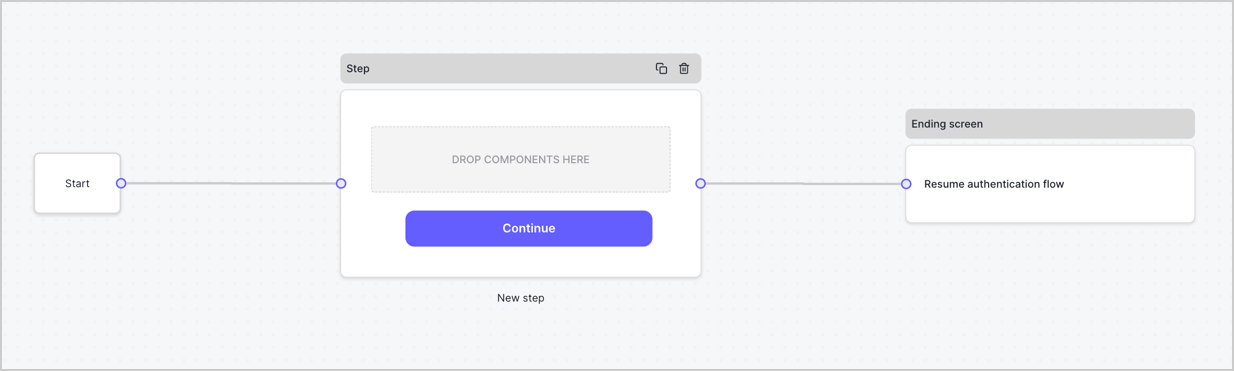
2. Sélectionnez **Create Form** > **Start from scratch**.

Par défaut, un nouveau formulaire contient un nœud Start, un nœud Step et un nœud Ending screen.
<Frame>
  <img src="https://mintcdn.com/docs-staging-chore-myaccount-api-autoupdate/XSZIwv0-vQPlgEcO/docs/images/cdy7uua7fh8z/2TZ9jSjgEcARFpULI6hz4R/a4319a1bd482f2ee5cc23100fdb2f42c/New-form-Forms-for-action-use-case.png?fit=max&auto=format&n=XSZIwv0-vQPlgEcO&q=85&s=fe4547d8d2a619f45dbfb09783ebe5da" alt="Dashboard > Forms > Use Cases > Form" data-og-width="1234" width="1234" data-og-height="371" height="371" data-path="docs/images/cdy7uua7fh8z/2TZ9jSjgEcARFpULI6hz4R/a4319a1bd482f2ee5cc23100fdb2f42c/New-form-Forms-for-action-use-case.png" data-optimize="true" data-opv="3" srcset="https://mintcdn.com/docs-staging-chore-myaccount-api-autoupdate/XSZIwv0-vQPlgEcO/docs/images/cdy7uua7fh8z/2TZ9jSjgEcARFpULI6hz4R/a4319a1bd482f2ee5cc23100fdb2f42c/New-form-Forms-for-action-use-case.png?w=280&fit=max&auto=format&n=XSZIwv0-vQPlgEcO&q=85&s=78911f814a627fc432f412310e1a31cc 280w, https://mintcdn.com/docs-staging-chore-myaccount-api-autoupdate/XSZIwv0-vQPlgEcO/docs/images/cdy7uua7fh8z/2TZ9jSjgEcARFpULI6hz4R/a4319a1bd482f2ee5cc23100fdb2f42c/New-form-Forms-for-action-use-case.png?w=560&fit=max&auto=format&n=XSZIwv0-vQPlgEcO&q=85&s=742b733d40399d44a140a73d77f16114 560w, https://mintcdn.com/docs-staging-chore-myaccount-api-autoupdate/XSZIwv0-vQPlgEcO/docs/images/cdy7uua7fh8z/2TZ9jSjgEcARFpULI6hz4R/a4319a1bd482f2ee5cc23100fdb2f42c/New-form-Forms-for-action-use-case.png?w=840&fit=max&auto=format&n=XSZIwv0-vQPlgEcO&q=85&s=54adb6d457a7f25c25c8204d74e8e73e 840w, https://mintcdn.com/docs-staging-chore-myaccount-api-autoupdate/XSZIwv0-vQPlgEcO/docs/images/cdy7uua7fh8z/2TZ9jSjgEcARFpULI6hz4R/a4319a1bd482f2ee5cc23100fdb2f42c/New-form-Forms-for-action-use-case.png?w=1100&fit=max&auto=format&n=XSZIwv0-vQPlgEcO&q=85&s=155493b1e7a9f2b9da15fe2b2530f248 1100w, https://mintcdn.com/docs-staging-chore-myaccount-api-autoupdate/XSZIwv0-vQPlgEcO/docs/images/cdy7uua7fh8z/2TZ9jSjgEcARFpULI6hz4R/a4319a1bd482f2ee5cc23100fdb2f42c/New-form-Forms-for-action-use-case.png?w=1650&fit=max&auto=format&n=XSZIwv0-vQPlgEcO&q=85&s=5d27b4c94c47cd0cfd557abbe1ce850c 1650w, https://mintcdn.com/docs-staging-chore-myaccount-api-autoupdate/XSZIwv0-vQPlgEcO/docs/images/cdy7uua7fh8z/2TZ9jSjgEcARFpULI6hz4R/a4319a1bd482f2ee5cc23100fdb2f42c/New-form-Forms-for-action-use-case.png?w=2500&fit=max&auto=format&n=XSZIwv0-vQPlgEcO&q=85&s=4bca5d7daf4c8eec01ecb1913f7373cd 2500w" />
</Frame>

<h3 id="configure-the-step-node">
  Configurer le nœud Step
</h3>

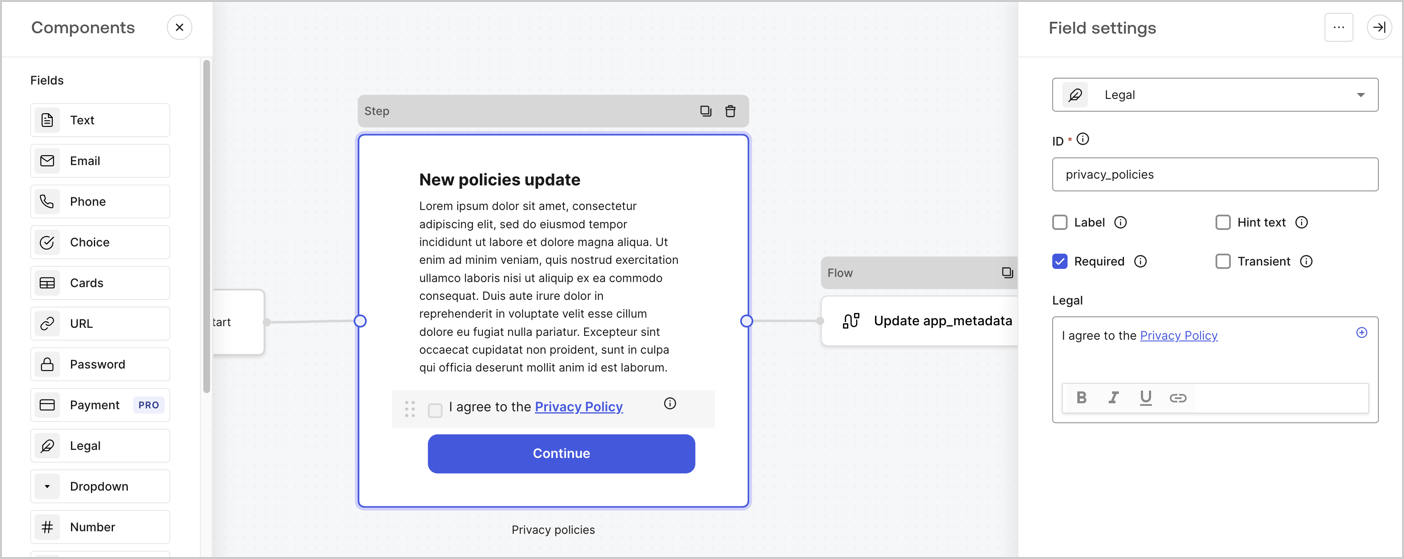
Le nœud Step est l’interface graphique visible par les utilisateurs. Ajoutez des [champs](/docs/fr-ca/customize/forms/nodes-and-components) au nœud Step pour recueillir la nouvelle valeur d’acceptation en suivant ces étapes :

1. Faites glisser un champ **Texte enrichi** du **menu Composants** vers le nœud **Step**.

   * **Texte enrichi** : Saisissez une description des mises à jour apportées à votre politique de confidentialité.
   * Sélectionnez **Enregistrer**.
2. Faites glisser un champ **Juridique** vers le nœud **Step**.

   * **ID** : Saisissez `privacy_policies`.
   * **Obligatoire** : Cochez la case.
   * **Juridique** : Saisissez `J’accepte la politique de confidentialité`.
   * Sélectionnez **Enregistrer**.
3. Sélectionnez **Publier** pour enregistrer.
<Frame>
  <img src="https://mintcdn.com/docs-staging-chore-myaccount-api-autoupdate/gX70I896qXZ9LmsE/docs/images/cdy7uua7fh8z/59zFFjQjAnjogkc2QGIqqJ/0ad66b1b636544122aa4e65968b76c2c/privacy-policy-step-node.png?fit=max&auto=format&n=gX70I896qXZ9LmsE&q=85&s=4f188b59da3e1b98ccdc632b61298cbe" alt="Dashboard > Actions > Forms > Cas d’utilisation du nœud Step de la politique de confidentialité" data-og-width="1404" width="1404" data-og-height="559" height="559" data-path="docs/images/cdy7uua7fh8z/59zFFjQjAnjogkc2QGIqqJ/0ad66b1b636544122aa4e65968b76c2c/privacy-policy-step-node.png" data-optimize="true" data-opv="3" srcset="https://mintcdn.com/docs-staging-chore-myaccount-api-autoupdate/gX70I896qXZ9LmsE/docs/images/cdy7uua7fh8z/59zFFjQjAnjogkc2QGIqqJ/0ad66b1b636544122aa4e65968b76c2c/privacy-policy-step-node.png?w=280&fit=max&auto=format&n=gX70I896qXZ9LmsE&q=85&s=62e02ae2b1df58e1f05fe054d1132a56 280w, https://mintcdn.com/docs-staging-chore-myaccount-api-autoupdate/gX70I896qXZ9LmsE/docs/images/cdy7uua7fh8z/59zFFjQjAnjogkc2QGIqqJ/0ad66b1b636544122aa4e65968b76c2c/privacy-policy-step-node.png?w=560&fit=max&auto=format&n=gX70I896qXZ9LmsE&q=85&s=6104cb65ccecd8698b331d74a8b99a8f 560w, https://mintcdn.com/docs-staging-chore-myaccount-api-autoupdate/gX70I896qXZ9LmsE/docs/images/cdy7uua7fh8z/59zFFjQjAnjogkc2QGIqqJ/0ad66b1b636544122aa4e65968b76c2c/privacy-policy-step-node.png?w=840&fit=max&auto=format&n=gX70I896qXZ9LmsE&q=85&s=747dfe2f5f17da5ee79e7851b986b4c9 840w, https://mintcdn.com/docs-staging-chore-myaccount-api-autoupdate/gX70I896qXZ9LmsE/docs/images/cdy7uua7fh8z/59zFFjQjAnjogkc2QGIqqJ/0ad66b1b636544122aa4e65968b76c2c/privacy-policy-step-node.png?w=1100&fit=max&auto=format&n=gX70I896qXZ9LmsE&q=85&s=77e3ff4a783636ce7e61208e809c45af 1100w, https://mintcdn.com/docs-staging-chore-myaccount-api-autoupdate/gX70I896qXZ9LmsE/docs/images/cdy7uua7fh8z/59zFFjQjAnjogkc2QGIqqJ/0ad66b1b636544122aa4e65968b76c2c/privacy-policy-step-node.png?w=1650&fit=max&auto=format&n=gX70I896qXZ9LmsE&q=85&s=ff16c2f7e2e9ad15bea05918d7aa052c 1650w, https://mintcdn.com/docs-staging-chore-myaccount-api-autoupdate/gX70I896qXZ9LmsE/docs/images/cdy7uua7fh8z/59zFFjQjAnjogkc2QGIqqJ/0ad66b1b636544122aa4e65968b76c2c/privacy-policy-step-node.png?w=2500&fit=max&auto=format&n=gX70I896qXZ9LmsE&q=85&s=4f429ef74bbe83f2d1217d66e435c9c9 2500w" />
</Frame>

<h3 id="configure-the-flow-node">
  Configurer le nœud **Flow**
</h3>

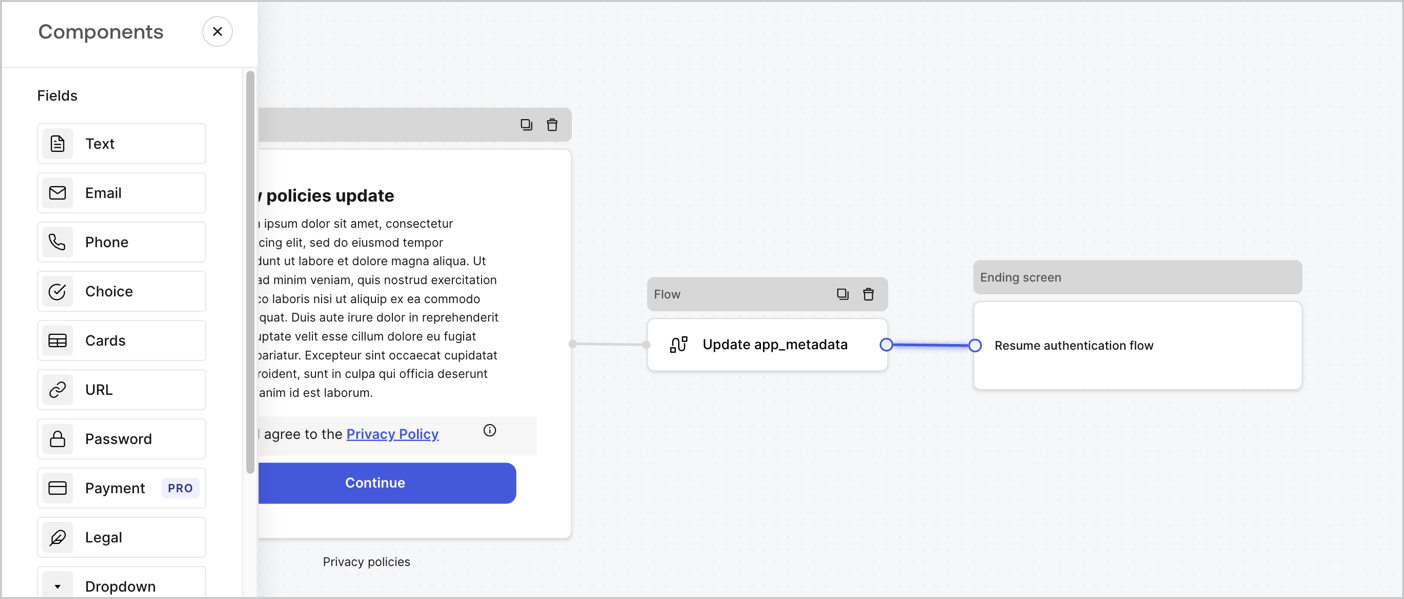
Ajoutez un nœud **Flow** après le nœud **Step** pour mettre à jour `app_metadata` et reprendre le flux d’authentification en suivant les étapes ci-dessous :

1. Sélectionnez **Flow** au bas de l’éditeur de formulaires.
2. Supprimez le lien existant entre les nœuds **Step** et **Ending Screen**.
3. Sélectionnez le nouveau **Flow** > **Click to add a flow** > **Create a new flow.**

   * Entrez `Update app_metadata` dans le champ **Name**.
   * Sélectionnez **Create**.
   * Sélectionnez **Save**.
4. Reliez le nœud **Flow** aux nœuds **Step** et **Ending Screen**, comme illustré ci-dessous.
5. Sélectionnez **Publish** pour enregistrer.
<Frame>
  <img src="https://mintcdn.com/docs-staging-chore-myaccount-api-autoupdate/o1UR_wVpl9p5EHsG/docs/images/cdy7uua7fh8z/6YIkzm7SrpM9LW76AXuRzh/353c518fe82bbaa440836da1d83596d6/link-policies.png?fit=max&auto=format&n=o1UR_wVpl9p5EHsG&q=85&s=9db5d4f9adf60e837cff5c4d976974c1" alt="Dashboard > Actions > Forms > Form" data-og-width="1404" width="1404" data-og-height="599" height="599" data-path="docs/images/cdy7uua7fh8z/6YIkzm7SrpM9LW76AXuRzh/353c518fe82bbaa440836da1d83596d6/link-policies.png" data-optimize="true" data-opv="3" srcset="https://mintcdn.com/docs-staging-chore-myaccount-api-autoupdate/o1UR_wVpl9p5EHsG/docs/images/cdy7uua7fh8z/6YIkzm7SrpM9LW76AXuRzh/353c518fe82bbaa440836da1d83596d6/link-policies.png?w=280&fit=max&auto=format&n=o1UR_wVpl9p5EHsG&q=85&s=9369a42bd25e6c1c39b9198b77a15418 280w, https://mintcdn.com/docs-staging-chore-myaccount-api-autoupdate/o1UR_wVpl9p5EHsG/docs/images/cdy7uua7fh8z/6YIkzm7SrpM9LW76AXuRzh/353c518fe82bbaa440836da1d83596d6/link-policies.png?w=560&fit=max&auto=format&n=o1UR_wVpl9p5EHsG&q=85&s=b13addf2023e15f2c0d883d69dcbe4e9 560w, https://mintcdn.com/docs-staging-chore-myaccount-api-autoupdate/o1UR_wVpl9p5EHsG/docs/images/cdy7uua7fh8z/6YIkzm7SrpM9LW76AXuRzh/353c518fe82bbaa440836da1d83596d6/link-policies.png?w=840&fit=max&auto=format&n=o1UR_wVpl9p5EHsG&q=85&s=70981e586b33b76661c728bde1dace77 840w, https://mintcdn.com/docs-staging-chore-myaccount-api-autoupdate/o1UR_wVpl9p5EHsG/docs/images/cdy7uua7fh8z/6YIkzm7SrpM9LW76AXuRzh/353c518fe82bbaa440836da1d83596d6/link-policies.png?w=1100&fit=max&auto=format&n=o1UR_wVpl9p5EHsG&q=85&s=9350afca78f4edc6532a4010038038c1 1100w, https://mintcdn.com/docs-staging-chore-myaccount-api-autoupdate/o1UR_wVpl9p5EHsG/docs/images/cdy7uua7fh8z/6YIkzm7SrpM9LW76AXuRzh/353c518fe82bbaa440836da1d83596d6/link-policies.png?w=1650&fit=max&auto=format&n=o1UR_wVpl9p5EHsG&q=85&s=8c351688b64d914438b430e4529e8203 1650w, https://mintcdn.com/docs-staging-chore-myaccount-api-autoupdate/o1UR_wVpl9p5EHsG/docs/images/cdy7uua7fh8z/6YIkzm7SrpM9LW76AXuRzh/353c518fe82bbaa440836da1d83596d6/link-policies.png?w=2500&fit=max&auto=format&n=o1UR_wVpl9p5EHsG&q=85&s=07dcd95f25a965af47d5db054bad041b 2500w" />
</Frame>

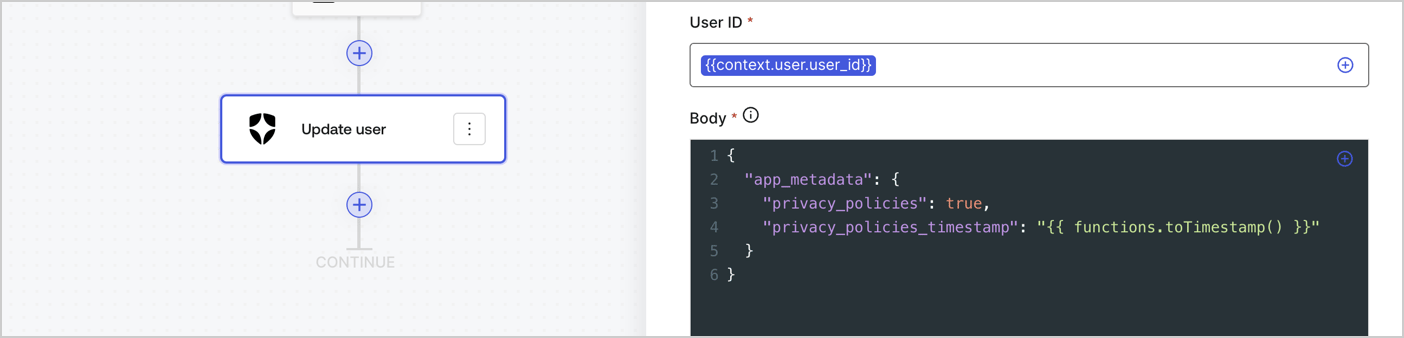
Ajoutez une action Auth0 **Update user** au flux en suivant les étapes ci-dessous :

1. Sélectionnez **Flow** **Update app\_metadata** > **Edit flow** pour ouvrir l’éditeur de flux dans un nouvel onglet.
2. Sous le StartAction, sélectionnez l’icône **+** pour ajouter une action **Update user**. Remplissez les champs ci-dessous, puis sélectionnez **Save** pour continuer.

   * **Connection** : Dans la liste déroulante, sélectionnez la connexion Vault de votre application M2M.

   * **User ID** : Entrez `{{context.user.user_id}}`.

   * **Body** : Copiez-collez le code suivant pour mettre à jour `app_metadata` avec les propriétés `privacy_policies` et `privacy_policies_timestamp`.

     ```text lines theme={null}
     {
       "app_metadata": {
         "privacy_policies": true,
         "privacy_policies_timestamp": "{{ functions.toTimestamp() }}"
       }
     }
     ```

   * Sélectionnez **Save**.
3. Sélectionnez **Publish** pour enregistrer.
<Frame>
  <img src="https://mintcdn.com/docs-staging-chore-myaccount-api-autoupdate/0fu7_BySE7sFYW4z/docs/images/cdy7uua7fh8z/CvMNIwWrOUwaFW4X3G28p/1fb70ae57a20749d9ffaaba8dc0b7e26/update-user-privacy.png?fit=max&auto=format&n=0fu7_BySE7sFYW4z&q=85&s=dcf466b022235223462a227618f52729" alt="Dashboard > Actions > Forms > User case privacy policy code" data-og-width="1404" width="1404" data-og-height="338" height="338" data-path="docs/images/cdy7uua7fh8z/CvMNIwWrOUwaFW4X3G28p/1fb70ae57a20749d9ffaaba8dc0b7e26/update-user-privacy.png" data-optimize="true" data-opv="3" srcset="https://mintcdn.com/docs-staging-chore-myaccount-api-autoupdate/0fu7_BySE7sFYW4z/docs/images/cdy7uua7fh8z/CvMNIwWrOUwaFW4X3G28p/1fb70ae57a20749d9ffaaba8dc0b7e26/update-user-privacy.png?w=280&fit=max&auto=format&n=0fu7_BySE7sFYW4z&q=85&s=1424661fbb2c6bfed44069ef8240fb99 280w, https://mintcdn.com/docs-staging-chore-myaccount-api-autoupdate/0fu7_BySE7sFYW4z/docs/images/cdy7uua7fh8z/CvMNIwWrOUwaFW4X3G28p/1fb70ae57a20749d9ffaaba8dc0b7e26/update-user-privacy.png?w=560&fit=max&auto=format&n=0fu7_BySE7sFYW4z&q=85&s=4ba1b4c1688bb64371995145b9d214f0 560w, https://mintcdn.com/docs-staging-chore-myaccount-api-autoupdate/0fu7_BySE7sFYW4z/docs/images/cdy7uua7fh8z/CvMNIwWrOUwaFW4X3G28p/1fb70ae57a20749d9ffaaba8dc0b7e26/update-user-privacy.png?w=840&fit=max&auto=format&n=0fu7_BySE7sFYW4z&q=85&s=b7fee4c5300b84c99c4dad38e4ae29d6 840w, https://mintcdn.com/docs-staging-chore-myaccount-api-autoupdate/0fu7_BySE7sFYW4z/docs/images/cdy7uua7fh8z/CvMNIwWrOUwaFW4X3G28p/1fb70ae57a20749d9ffaaba8dc0b7e26/update-user-privacy.png?w=1100&fit=max&auto=format&n=0fu7_BySE7sFYW4z&q=85&s=21b9a1872f055c03c57978273a601da0 1100w, https://mintcdn.com/docs-staging-chore-myaccount-api-autoupdate/0fu7_BySE7sFYW4z/docs/images/cdy7uua7fh8z/CvMNIwWrOUwaFW4X3G28p/1fb70ae57a20749d9ffaaba8dc0b7e26/update-user-privacy.png?w=1650&fit=max&auto=format&n=0fu7_BySE7sFYW4z&q=85&s=03dcff0f589cd8fe1f4069d88cc35e6d 1650w, https://mintcdn.com/docs-staging-chore-myaccount-api-autoupdate/0fu7_BySE7sFYW4z/docs/images/cdy7uua7fh8z/CvMNIwWrOUwaFW4X3G28p/1fb70ae57a20749d9ffaaba8dc0b7e26/update-user-privacy.png?w=2500&fit=max&auto=format&n=0fu7_BySE7sFYW4z&q=85&s=edf7718105ff5e4b51ec2ba9aca19071 2500w" />
</Frame>

<Callout icon="file-lines" color="#0EA5E9" iconType="regular">
  Le flux **Update app\_metadata** ajoute la valeur `privacy_policies true` à l’objet `app_metadata` et génère aussi un horodatage à l’aide d’une [fonction utilitaire.](/docs/fr-ca/customize/forms/variables)
</Callout>

<h2 id="retrieve-the-form-render-code">
  Récupérer le code de rendu du formulaire
</h2>

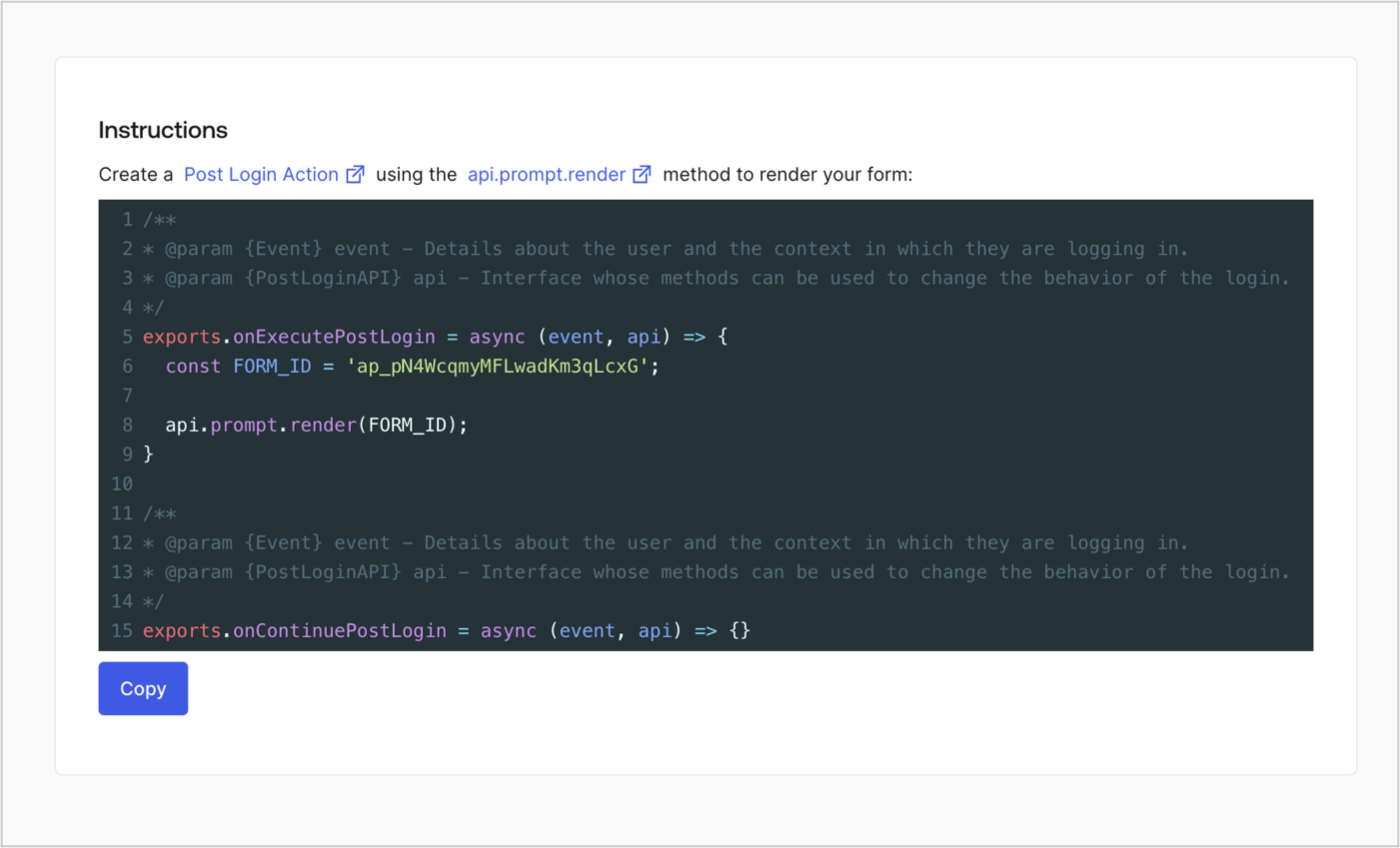
Récupérez le code de rendu de votre formulaire afin d’afficher le formulaire au moyen d’une Action Post Login personnalisée en suivant ces étapes :

* Dans l’éditeur de formulaires, sélectionnez **`<> Render`**.
* Sélectionnez **Copy**.
<Frame>
  <img src="https://mintcdn.com/docs-staging-chore-myaccount-api-autoupdate/nuDe4v-q_ZNWMmoT/docs/images/cdy7uua7fh8z/2EIUzc539sq9lwoTKbjoJv/496a864c0fc44a782c9cadca119dbfb0/embed.png?fit=max&auto=format&n=nuDe4v-q_ZNWMmoT&q=85&s=995003cf24493f6ac3b8efc92fe63dea" alt="Dashboard > Actions > Forms > Form > Embed" data-og-width="1400" width="1400" data-og-height="848" height="848" data-path="docs/images/cdy7uua7fh8z/2EIUzc539sq9lwoTKbjoJv/496a864c0fc44a782c9cadca119dbfb0/embed.png" data-optimize="true" data-opv="3" srcset="https://mintcdn.com/docs-staging-chore-myaccount-api-autoupdate/nuDe4v-q_ZNWMmoT/docs/images/cdy7uua7fh8z/2EIUzc539sq9lwoTKbjoJv/496a864c0fc44a782c9cadca119dbfb0/embed.png?w=280&fit=max&auto=format&n=nuDe4v-q_ZNWMmoT&q=85&s=5128925603cef5f85a41d7c0d9d6a691 280w, https://mintcdn.com/docs-staging-chore-myaccount-api-autoupdate/nuDe4v-q_ZNWMmoT/docs/images/cdy7uua7fh8z/2EIUzc539sq9lwoTKbjoJv/496a864c0fc44a782c9cadca119dbfb0/embed.png?w=560&fit=max&auto=format&n=nuDe4v-q_ZNWMmoT&q=85&s=e034a6894cf619cb743868b92eea20c0 560w, https://mintcdn.com/docs-staging-chore-myaccount-api-autoupdate/nuDe4v-q_ZNWMmoT/docs/images/cdy7uua7fh8z/2EIUzc539sq9lwoTKbjoJv/496a864c0fc44a782c9cadca119dbfb0/embed.png?w=840&fit=max&auto=format&n=nuDe4v-q_ZNWMmoT&q=85&s=52a0e8c7773b04201474ee6cc9b2491a 840w, https://mintcdn.com/docs-staging-chore-myaccount-api-autoupdate/nuDe4v-q_ZNWMmoT/docs/images/cdy7uua7fh8z/2EIUzc539sq9lwoTKbjoJv/496a864c0fc44a782c9cadca119dbfb0/embed.png?w=1100&fit=max&auto=format&n=nuDe4v-q_ZNWMmoT&q=85&s=a67dc66284b9cf955af070c09ba30871 1100w, https://mintcdn.com/docs-staging-chore-myaccount-api-autoupdate/nuDe4v-q_ZNWMmoT/docs/images/cdy7uua7fh8z/2EIUzc539sq9lwoTKbjoJv/496a864c0fc44a782c9cadca119dbfb0/embed.png?w=1650&fit=max&auto=format&n=nuDe4v-q_ZNWMmoT&q=85&s=73a56c78bf6f0ffa1858b8566bcde69b 1650w, https://mintcdn.com/docs-staging-chore-myaccount-api-autoupdate/nuDe4v-q_ZNWMmoT/docs/images/cdy7uua7fh8z/2EIUzc539sq9lwoTKbjoJv/496a864c0fc44a782c9cadca119dbfb0/embed.png?w=2500&fit=max&auto=format&n=nuDe4v-q_ZNWMmoT&q=85&s=d6d3375b1f14f9d2633b5542bf61691a 2500w" />
</Frame>

<h2 id="create-a-post-login-action">
  Créer une Action Post Login
</h2>

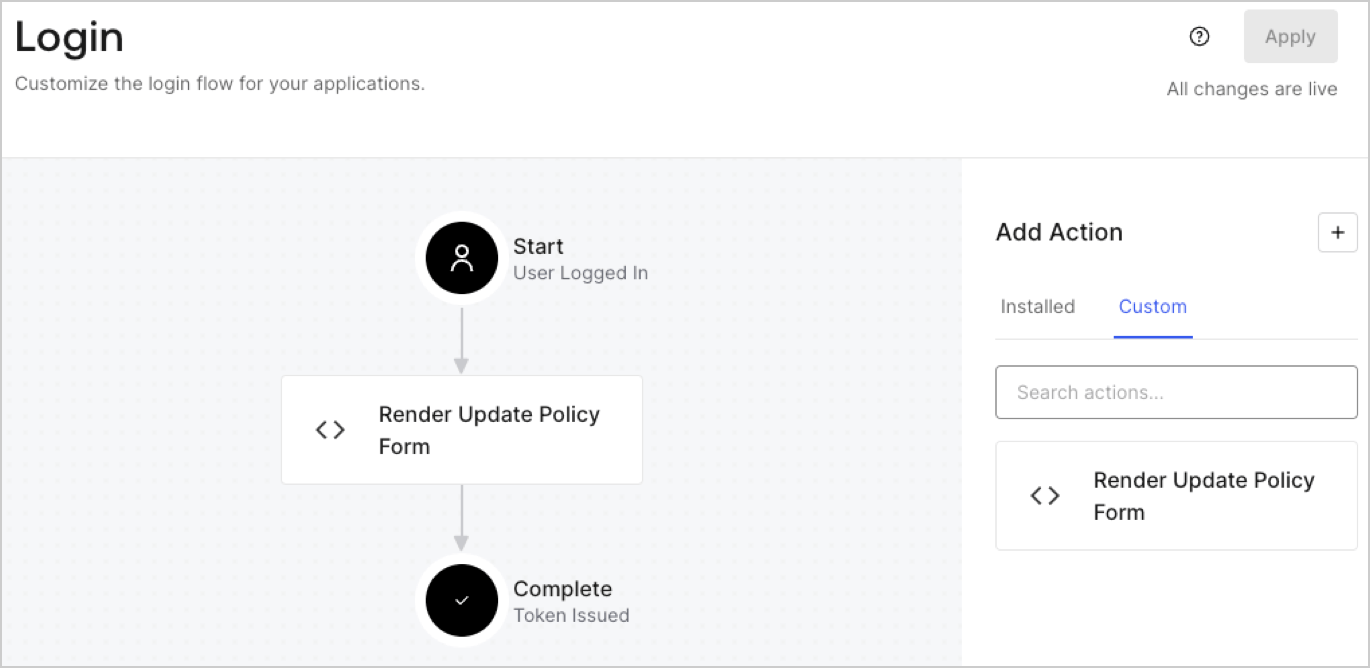
Créez une action post-login pour afficher votre formulaire en suivant les étapes ci-dessous :

1. Accédez à **Auth0 Dashboard > Actions > Flows > Login.**
2. Sélectionnez l’icône **+**, puis **Build from scratch** :

   * **Nom** : Entrez `Render Update Policy Form`.
   * **Déclencheur** : Sélectionnez `Login / Post Login`.
   * **Runtime** : Sélectionnez la version recommandée.
3. Sélectionnez **Créer**.

Pour configurer l’action post-login :

1. Supprimez le code existant dans l’éditeur de code.
2. Collez le code de rendu du formulaire dans l’éditeur de code.
3. Modifiez le code pour définir la logique conditionnelle qui affichera le formulaire.

   ```javascript lines theme={null}
   /**
   * @param {Event} event - Détails sur l’utilisateur et le contexte dans lequel il se connecte.
   * @param {PostLoginAPI} api - Interface dont les méthodes peuvent être utilisées pour modifier le comportement de la connexion.
   */
   exports.onExecutePostLogin = async (event, api) => {
     const FORM_ID = 'REPLACE_WITH_YOUR_FORM_ID';

     if (event.user.app_metadata.privacy_policies !== true) {
       api.prompt.render(FORM_ID);
     }
   }

   exports.onContinuePostLogin = async (event, api) => { }
   ```

   <Callout icon="file-lines" color="#0EA5E9" iconType="regular">
     L’exemple de code ci-dessus affichera le formulaire si la propriété `privacy_policies` est absente de l’objet app metadata de l’utilisateur.
   </Callout>
4. Sélectionnez **Déployer**.
5. Glissez-déposez l’Action **Render Update Policy Form** dans le flux de **Login**.
   <Frame>
     <img src="https://mintcdn.com/docs-staging-chore-myaccount-api-autoupdate/NCktBbrAV1W5T8qn/docs/images/cdy7uua7fh8z/5TOwDgevZsBqd7yZynUYWU/41ca909dc3007aed4f40ff794a05efa5/postlogin.png?fit=max&auto=format&n=NCktBbrAV1W5T8qn&q=85&s=871c0b5ebd90b636c9c07f4a33f798db" alt="Dashboard > Forms > cas d’utilisation > action de connexion pour afficher le formulaire de mise à jour de la politique" data-og-width="1370" width="1370" data-og-height="668" height="668" data-path="docs/images/cdy7uua7fh8z/5TOwDgevZsBqd7yZynUYWU/41ca909dc3007aed4f40ff794a05efa5/postlogin.png" data-optimize="true" data-opv="3" srcset="https://mintcdn.com/docs-staging-chore-myaccount-api-autoupdate/NCktBbrAV1W5T8qn/docs/images/cdy7uua7fh8z/5TOwDgevZsBqd7yZynUYWU/41ca909dc3007aed4f40ff794a05efa5/postlogin.png?w=280&fit=max&auto=format&n=NCktBbrAV1W5T8qn&q=85&s=6d29ddb9c1ee42a7221d94494c36520e 280w, https://mintcdn.com/docs-staging-chore-myaccount-api-autoupdate/NCktBbrAV1W5T8qn/docs/images/cdy7uua7fh8z/5TOwDgevZsBqd7yZynUYWU/41ca909dc3007aed4f40ff794a05efa5/postlogin.png?w=560&fit=max&auto=format&n=NCktBbrAV1W5T8qn&q=85&s=39da37b6265390edc23289b1ee228429 560w, https://mintcdn.com/docs-staging-chore-myaccount-api-autoupdate/NCktBbrAV1W5T8qn/docs/images/cdy7uua7fh8z/5TOwDgevZsBqd7yZynUYWU/41ca909dc3007aed4f40ff794a05efa5/postlogin.png?w=840&fit=max&auto=format&n=NCktBbrAV1W5T8qn&q=85&s=1446c49a71b09c9690cc3b4fc0f969ef 840w, https://mintcdn.com/docs-staging-chore-myaccount-api-autoupdate/NCktBbrAV1W5T8qn/docs/images/cdy7uua7fh8z/5TOwDgevZsBqd7yZynUYWU/41ca909dc3007aed4f40ff794a05efa5/postlogin.png?w=1100&fit=max&auto=format&n=NCktBbrAV1W5T8qn&q=85&s=ed548bde9ba085d9c86e920388cc3b04 1100w, https://mintcdn.com/docs-staging-chore-myaccount-api-autoupdate/NCktBbrAV1W5T8qn/docs/images/cdy7uua7fh8z/5TOwDgevZsBqd7yZynUYWU/41ca909dc3007aed4f40ff794a05efa5/postlogin.png?w=1650&fit=max&auto=format&n=NCktBbrAV1W5T8qn&q=85&s=f992ac93e7066021f65e92ab48c9386d 1650w, https://mintcdn.com/docs-staging-chore-myaccount-api-autoupdate/NCktBbrAV1W5T8qn/docs/images/cdy7uua7fh8z/5TOwDgevZsBqd7yZynUYWU/41ca909dc3007aed4f40ff794a05efa5/postlogin.png?w=2500&fit=max&auto=format&n=NCktBbrAV1W5T8qn&q=85&s=12bdb13e396ae6cc72c370b8aa111aee 2500w" />
   </Frame>
6. Sélectionnez **Appliquer**.

<h3 id="test-implementation">
  Test de la mise en œuvre
</h3>

Testez la mise en œuvre en suivant ces étapes :

1. Connectez-vous avec un utilisateur existant dont l’attribut app`_metadata` `privacy_policies` n’a aucune valeur.
2. L’Action post-login dans le flux de Login affichera le formulaire et demandera l’acceptation.
3. Sélectionnez **Auth0 Dashboard > User Management > Users,** repérez l’utilisateur et vérifiez que l’attribut `app_metadata` `privacy_policies` contient la valeur `true` ainsi qu’un horodatage.
