> ## Documentation Index
> Fetch the complete documentation index at: https://docs-staging-chore-myaccount-api-autoupdate.mintlify.site/llms.txt
> Use this file to discover all available pages before exploring further.

> Forms for Actions を使用して、ユーザーが新しい利用規約または同意に関する更新内容を確認して承諾できるように、更新ポリシーフォームを設定する方法を学びます。

# ユースケース: Forms を使用して更新ポリシーフォームを設定する

<Card title="始める前に">
  1. 次のスコープを有効にして、[Machine-to-Machine Application](/docs/ja-jp/get-started/auth0-overview/create-applications/machine-to-machine-apps) を作成します。

  * `read:users`
  * `update:users`
  * `create:users`
  * `read:users_app_metadata`
  * `update:users_app_metadata`
  * `create:users_app_metadata`

  2. M2M アプリケーションの認証情報を使用して、[Vault 接続](/docs/ja-jp/customize/forms/vault) を追加します。
</Card>

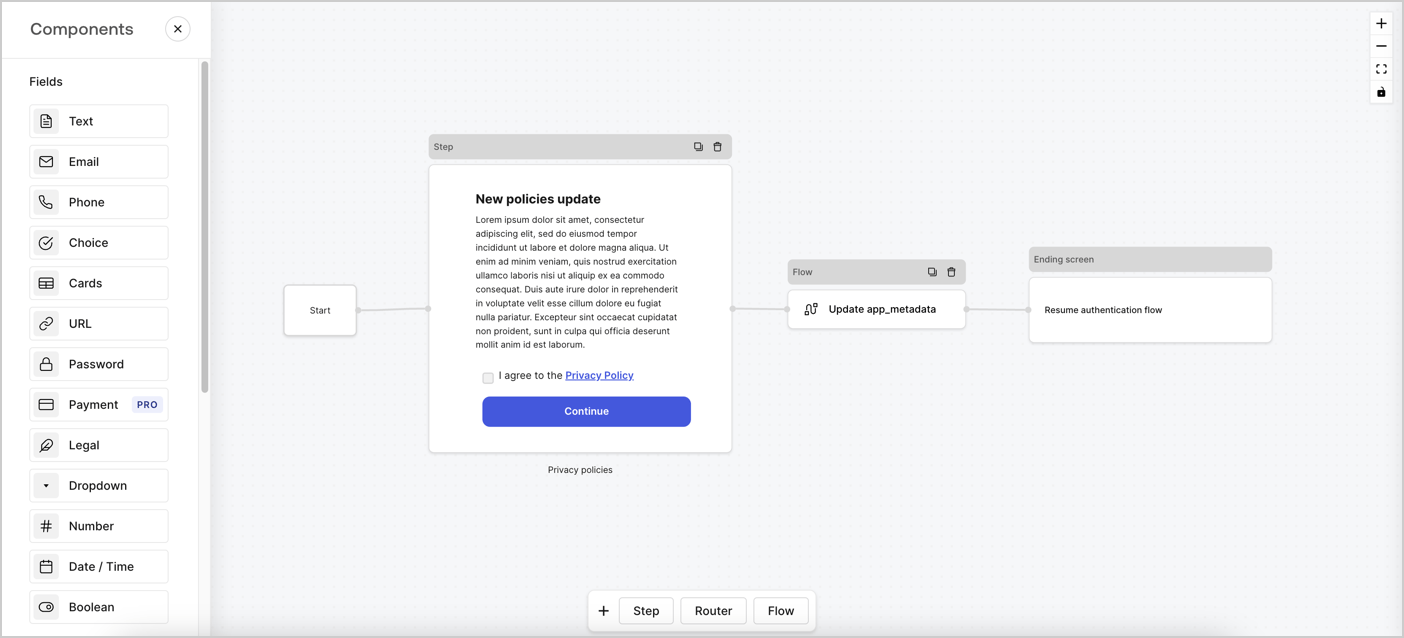
Forms for Actions では、カスタムのプライバシーポリシーフローを作成し、その同意内容を `app_metadata` オブジェクトに保存できます。
<Frame>
  <img src="https://mintcdn.com/docs-staging-chore-myaccount-api-autoupdate/o1UR_wVpl9p5EHsG/docs/images/cdy7uua7fh8z/6i68dMvHDTijfRmSgN1x8Q/ad900e7d4c0fb34645921435472b8684/privavy-policy-form.png?fit=max&auto=format&n=o1UR_wVpl9p5EHsG&q=85&s=ffd1f5cca23db8d664a9582782a68ba0" alt="Dashboard > Actions > Forms > Privacy policy use case" data-og-width="1404" width="1404" data-og-height="638" height="638" data-path="docs/images/cdy7uua7fh8z/6i68dMvHDTijfRmSgN1x8Q/ad900e7d4c0fb34645921435472b8684/privavy-policy-form.png" data-optimize="true" data-opv="3" srcset="https://mintcdn.com/docs-staging-chore-myaccount-api-autoupdate/o1UR_wVpl9p5EHsG/docs/images/cdy7uua7fh8z/6i68dMvHDTijfRmSgN1x8Q/ad900e7d4c0fb34645921435472b8684/privavy-policy-form.png?w=280&fit=max&auto=format&n=o1UR_wVpl9p5EHsG&q=85&s=31b288b8db2b1b0f6b956d4750e0480c 280w, https://mintcdn.com/docs-staging-chore-myaccount-api-autoupdate/o1UR_wVpl9p5EHsG/docs/images/cdy7uua7fh8z/6i68dMvHDTijfRmSgN1x8Q/ad900e7d4c0fb34645921435472b8684/privavy-policy-form.png?w=560&fit=max&auto=format&n=o1UR_wVpl9p5EHsG&q=85&s=edd3915ba387b4552fb5d5ad094c39a1 560w, https://mintcdn.com/docs-staging-chore-myaccount-api-autoupdate/o1UR_wVpl9p5EHsG/docs/images/cdy7uua7fh8z/6i68dMvHDTijfRmSgN1x8Q/ad900e7d4c0fb34645921435472b8684/privavy-policy-form.png?w=840&fit=max&auto=format&n=o1UR_wVpl9p5EHsG&q=85&s=50a3a07e1e2f8ce863ce39fcf93d5d64 840w, https://mintcdn.com/docs-staging-chore-myaccount-api-autoupdate/o1UR_wVpl9p5EHsG/docs/images/cdy7uua7fh8z/6i68dMvHDTijfRmSgN1x8Q/ad900e7d4c0fb34645921435472b8684/privavy-policy-form.png?w=1100&fit=max&auto=format&n=o1UR_wVpl9p5EHsG&q=85&s=da3885016ace2431ff266c4034fe424c 1100w, https://mintcdn.com/docs-staging-chore-myaccount-api-autoupdate/o1UR_wVpl9p5EHsG/docs/images/cdy7uua7fh8z/6i68dMvHDTijfRmSgN1x8Q/ad900e7d4c0fb34645921435472b8684/privavy-policy-form.png?w=1650&fit=max&auto=format&n=o1UR_wVpl9p5EHsG&q=85&s=f43c0765bfbdf97fc3b28f1c382af6c1 1650w, https://mintcdn.com/docs-staging-chore-myaccount-api-autoupdate/o1UR_wVpl9p5EHsG/docs/images/cdy7uua7fh8z/6i68dMvHDTijfRmSgN1x8Q/ad900e7d4c0fb34645921435472b8684/privavy-policy-form.png?w=2500&fit=max&auto=format&n=o1UR_wVpl9p5EHsG&q=85&s=cd6c2ecc9b49b0f9d645dc0280c6d270 2500w" />
</Frame>

以下のセクションでは、ノードとフローを使用して更新ポリシーフォームを作成する方法と、そのフォームを [Post Login](/docs/ja-jp/customize/actions/explore-triggers/signup-and-login-triggers/login-trigger) Action に追加する手順について説明します。

<h2 id="create-a-form-from-scratch">
  フォームを一から作成する
</h2>

情報を収集するためのフォームを作成するには、次の手順に従います。

1. **Auth0 Dashboard > Actions > Forms** を選択して、フォームエディターを開きます。
2. **Create Form** > **Start from scratch** を選択します。

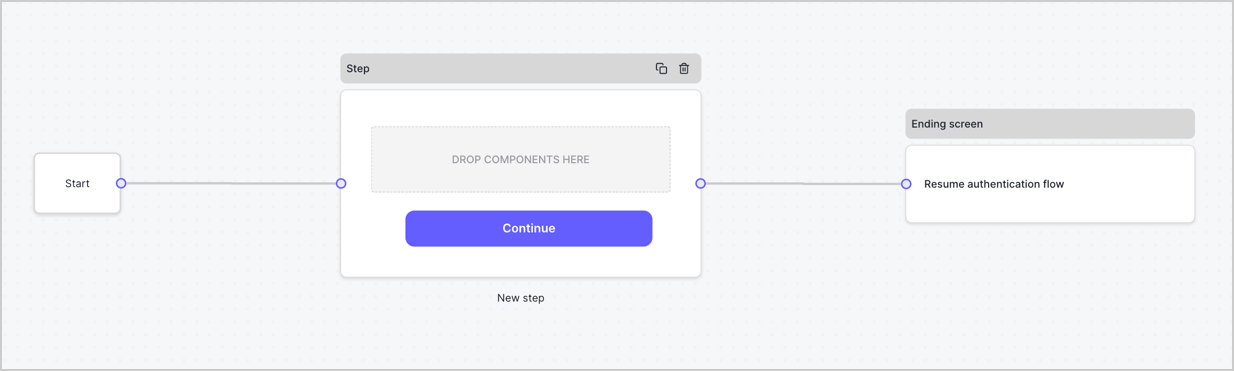
デフォルトでは、新しいフォームには Start ノード、Step ノード、Ending screen ノードが含まれています。
<Frame>
  <img src="https://mintcdn.com/docs-staging-chore-myaccount-api-autoupdate/XSZIwv0-vQPlgEcO/docs/images/cdy7uua7fh8z/2TZ9jSjgEcARFpULI6hz4R/a4319a1bd482f2ee5cc23100fdb2f42c/New-form-Forms-for-action-use-case.png?fit=max&auto=format&n=XSZIwv0-vQPlgEcO&q=85&s=fe4547d8d2a619f45dbfb09783ebe5da" alt="Dashboard > Forms > Use Cases > Form" data-og-width="1234" width="1234" data-og-height="371" height="371" data-path="docs/images/cdy7uua7fh8z/2TZ9jSjgEcARFpULI6hz4R/a4319a1bd482f2ee5cc23100fdb2f42c/New-form-Forms-for-action-use-case.png" data-optimize="true" data-opv="3" srcset="https://mintcdn.com/docs-staging-chore-myaccount-api-autoupdate/XSZIwv0-vQPlgEcO/docs/images/cdy7uua7fh8z/2TZ9jSjgEcARFpULI6hz4R/a4319a1bd482f2ee5cc23100fdb2f42c/New-form-Forms-for-action-use-case.png?w=280&fit=max&auto=format&n=XSZIwv0-vQPlgEcO&q=85&s=78911f814a627fc432f412310e1a31cc 280w, https://mintcdn.com/docs-staging-chore-myaccount-api-autoupdate/XSZIwv0-vQPlgEcO/docs/images/cdy7uua7fh8z/2TZ9jSjgEcARFpULI6hz4R/a4319a1bd482f2ee5cc23100fdb2f42c/New-form-Forms-for-action-use-case.png?w=560&fit=max&auto=format&n=XSZIwv0-vQPlgEcO&q=85&s=742b733d40399d44a140a73d77f16114 560w, https://mintcdn.com/docs-staging-chore-myaccount-api-autoupdate/XSZIwv0-vQPlgEcO/docs/images/cdy7uua7fh8z/2TZ9jSjgEcARFpULI6hz4R/a4319a1bd482f2ee5cc23100fdb2f42c/New-form-Forms-for-action-use-case.png?w=840&fit=max&auto=format&n=XSZIwv0-vQPlgEcO&q=85&s=54adb6d457a7f25c25c8204d74e8e73e 840w, https://mintcdn.com/docs-staging-chore-myaccount-api-autoupdate/XSZIwv0-vQPlgEcO/docs/images/cdy7uua7fh8z/2TZ9jSjgEcARFpULI6hz4R/a4319a1bd482f2ee5cc23100fdb2f42c/New-form-Forms-for-action-use-case.png?w=1100&fit=max&auto=format&n=XSZIwv0-vQPlgEcO&q=85&s=155493b1e7a9f2b9da15fe2b2530f248 1100w, https://mintcdn.com/docs-staging-chore-myaccount-api-autoupdate/XSZIwv0-vQPlgEcO/docs/images/cdy7uua7fh8z/2TZ9jSjgEcARFpULI6hz4R/a4319a1bd482f2ee5cc23100fdb2f42c/New-form-Forms-for-action-use-case.png?w=1650&fit=max&auto=format&n=XSZIwv0-vQPlgEcO&q=85&s=5d27b4c94c47cd0cfd557abbe1ce850c 1650w, https://mintcdn.com/docs-staging-chore-myaccount-api-autoupdate/XSZIwv0-vQPlgEcO/docs/images/cdy7uua7fh8z/2TZ9jSjgEcARFpULI6hz4R/a4319a1bd482f2ee5cc23100fdb2f42c/New-form-Forms-for-action-use-case.png?w=2500&fit=max&auto=format&n=XSZIwv0-vQPlgEcO&q=85&s=4bca5d7daf4c8eec01ecb1913f7373cd 2500w" />
</Frame>

<h3 id="configure-the-step-node">
  Step ノードを設定する
</h3>

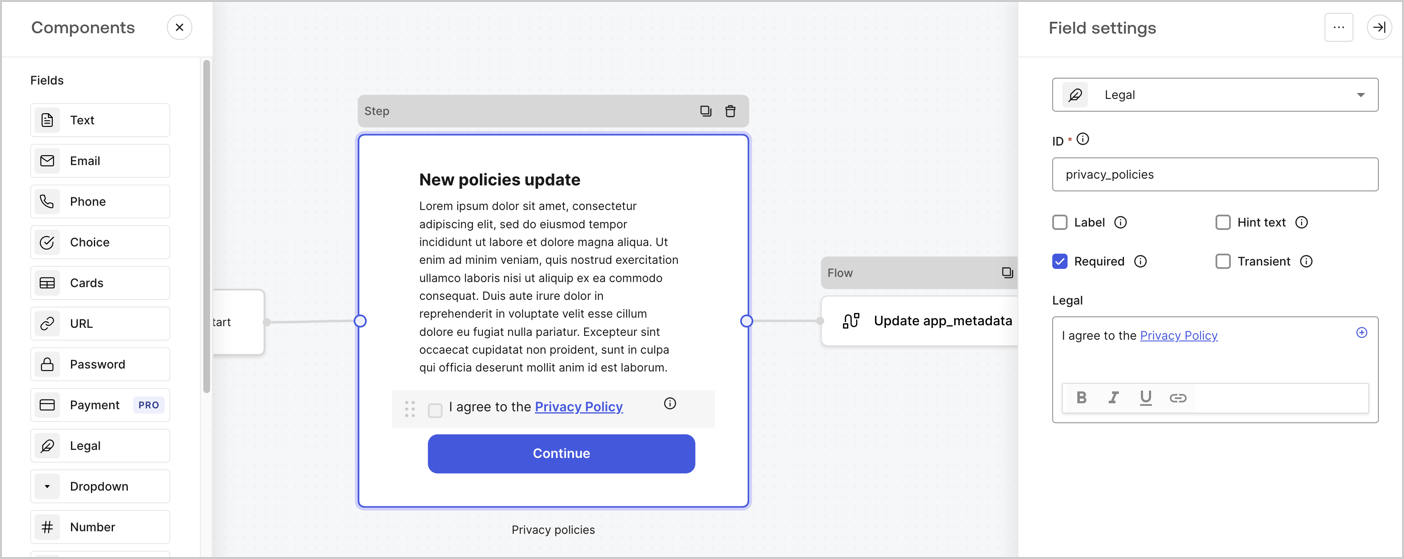
Step ノードは、ユーザーに表示されるグラフィカルインターフェースです。次の手順で、新しい同意の承諾値を収集するための [Fields](/docs/ja-jp/customize/forms/nodes-and-components) を Step ノードに追加します。

1. **Components menu** から **Rich text** フィールドを **Step** ノードにドラッグします。

   * **Rich text**: プライバシーポリシーの更新内容に関する説明を入力します。
   * **Save** を選択します。
2. **Legal** フィールドを **Step** ノードにドラッグします。

   * **ID**: `privacy_policies` と入力します。
   * **Required**: チェックボックスをオンにします。
   * **Legal**: `I agree to the Privacy Policy` と入力します。
   * **Save** を選択します。
3. 保存するには **Publish** を選択します。
<Frame>
  <img src="https://mintcdn.com/docs-staging-chore-myaccount-api-autoupdate/gX70I896qXZ9LmsE/docs/images/cdy7uua7fh8z/59zFFjQjAnjogkc2QGIqqJ/0ad66b1b636544122aa4e65968b76c2c/privacy-policy-step-node.png?fit=max&auto=format&n=gX70I896qXZ9LmsE&q=85&s=4f188b59da3e1b98ccdc632b61298cbe" alt="Dashboard > Actions > Forms > プライバシーポリシーのユースケースの Step ノード" data-og-width="1404" width="1404" data-og-height="559" height="559" data-path="docs/images/cdy7uua7fh8z/59zFFjQjAnjogkc2QGIqqJ/0ad66b1b636544122aa4e65968b76c2c/privacy-policy-step-node.png" data-optimize="true" data-opv="3" srcset="https://mintcdn.com/docs-staging-chore-myaccount-api-autoupdate/gX70I896qXZ9LmsE/docs/images/cdy7uua7fh8z/59zFFjQjAnjogkc2QGIqqJ/0ad66b1b636544122aa4e65968b76c2c/privacy-policy-step-node.png?w=280&fit=max&auto=format&n=gX70I896qXZ9LmsE&q=85&s=62e02ae2b1df58e1f05fe054d1132a56 280w, https://mintcdn.com/docs-staging-chore-myaccount-api-autoupdate/gX70I896qXZ9LmsE/docs/images/cdy7uua7fh8z/59zFFjQjAnjogkc2QGIqqJ/0ad66b1b636544122aa4e65968b76c2c/privacy-policy-step-node.png?w=560&fit=max&auto=format&n=gX70I896qXZ9LmsE&q=85&s=6104cb65ccecd8698b331d74a8b99a8f 560w, https://mintcdn.com/docs-staging-chore-myaccount-api-autoupdate/gX70I896qXZ9LmsE/docs/images/cdy7uua7fh8z/59zFFjQjAnjogkc2QGIqqJ/0ad66b1b636544122aa4e65968b76c2c/privacy-policy-step-node.png?w=840&fit=max&auto=format&n=gX70I896qXZ9LmsE&q=85&s=747dfe2f5f17da5ee79e7851b986b4c9 840w, https://mintcdn.com/docs-staging-chore-myaccount-api-autoupdate/gX70I896qXZ9LmsE/docs/images/cdy7uua7fh8z/59zFFjQjAnjogkc2QGIqqJ/0ad66b1b636544122aa4e65968b76c2c/privacy-policy-step-node.png?w=1100&fit=max&auto=format&n=gX70I896qXZ9LmsE&q=85&s=77e3ff4a783636ce7e61208e809c45af 1100w, https://mintcdn.com/docs-staging-chore-myaccount-api-autoupdate/gX70I896qXZ9LmsE/docs/images/cdy7uua7fh8z/59zFFjQjAnjogkc2QGIqqJ/0ad66b1b636544122aa4e65968b76c2c/privacy-policy-step-node.png?w=1650&fit=max&auto=format&n=gX70I896qXZ9LmsE&q=85&s=ff16c2f7e2e9ad15bea05918d7aa052c 1650w, https://mintcdn.com/docs-staging-chore-myaccount-api-autoupdate/gX70I896qXZ9LmsE/docs/images/cdy7uua7fh8z/59zFFjQjAnjogkc2QGIqqJ/0ad66b1b636544122aa4e65968b76c2c/privacy-policy-step-node.png?w=2500&fit=max&auto=format&n=gX70I896qXZ9LmsE&q=85&s=4f429ef74bbe83f2d1217d66e435c9c9 2500w" />
</Frame>

<h3 id="configure-the-flow-node">
  Flow ノードを設定する
</h3>

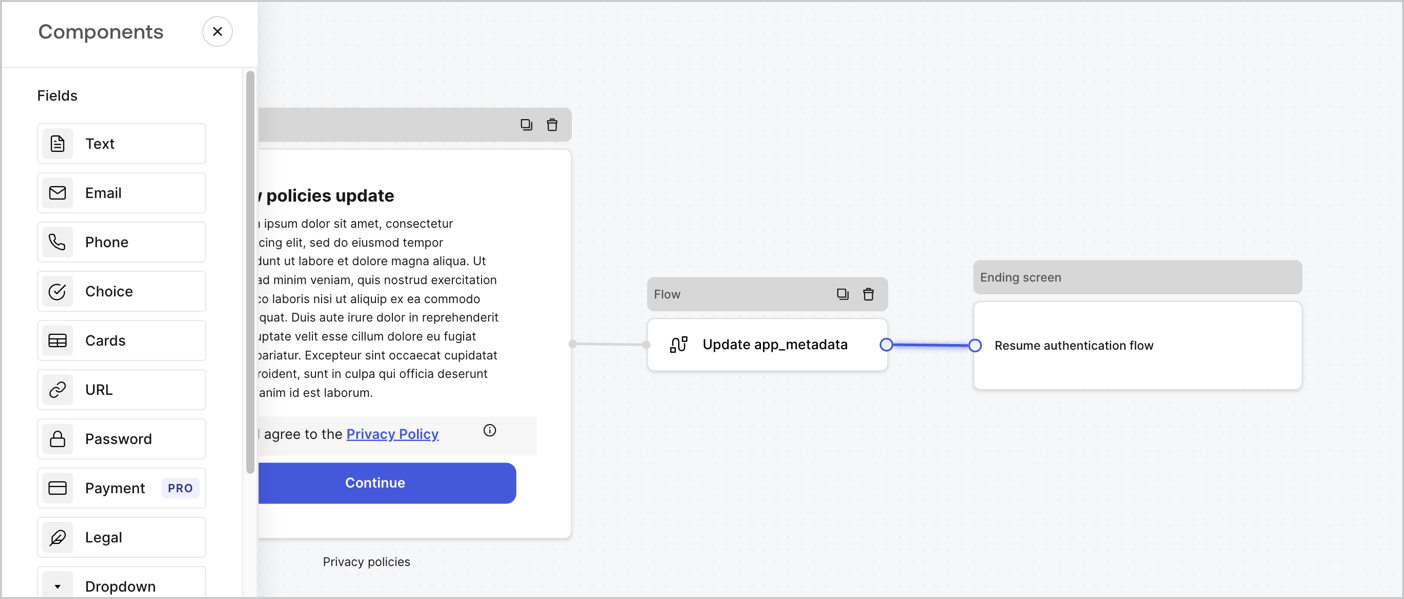
次の手順に従って、**Step** ノードの後に **Flow** ノードを追加し、`app_metadata` を更新して認証フローを再開します。

1. フォームエディターの下部で **Flow** を選択します。
2. **Step** ノードと **Ending Screen** ノードの間にある既存のリンクを削除します。
3. 新しい **Flow** > **Click to add a flow** > **Create a new flow.** を選択します。

   * **Name** フィールドに `Update app_metadata` と入力します。
   * **Create** を選択します。
   * **Save** を選択します。
4. 下図のように、**Flow** ノードを **Step** ノードと **Ending Screen** ノードにリンクします。
5. 保存するには **Publish** を選択します。
<Frame>
  <img src="https://mintcdn.com/docs-staging-chore-myaccount-api-autoupdate/o1UR_wVpl9p5EHsG/docs/images/cdy7uua7fh8z/6YIkzm7SrpM9LW76AXuRzh/353c518fe82bbaa440836da1d83596d6/link-policies.png?fit=max&auto=format&n=o1UR_wVpl9p5EHsG&q=85&s=9db5d4f9adf60e837cff5c4d976974c1" alt="Dashboard > Actions > Forms > Form" data-og-width="1404" width="1404" data-og-height="599" height="599" data-path="docs/images/cdy7uua7fh8z/6YIkzm7SrpM9LW76AXuRzh/353c518fe82bbaa440836da1d83596d6/link-policies.png" data-optimize="true" data-opv="3" srcset="https://mintcdn.com/docs-staging-chore-myaccount-api-autoupdate/o1UR_wVpl9p5EHsG/docs/images/cdy7uua7fh8z/6YIkzm7SrpM9LW76AXuRzh/353c518fe82bbaa440836da1d83596d6/link-policies.png?w=280&fit=max&auto=format&n=o1UR_wVpl9p5EHsG&q=85&s=9369a42bd25e6c1c39b9198b77a15418 280w, https://mintcdn.com/docs-staging-chore-myaccount-api-autoupdate/o1UR_wVpl9p5EHsG/docs/images/cdy7uua7fh8z/6YIkzm7SrpM9LW76AXuRzh/353c518fe82bbaa440836da1d83596d6/link-policies.png?w=560&fit=max&auto=format&n=o1UR_wVpl9p5EHsG&q=85&s=b13addf2023e15f2c0d883d69dcbe4e9 560w, https://mintcdn.com/docs-staging-chore-myaccount-api-autoupdate/o1UR_wVpl9p5EHsG/docs/images/cdy7uua7fh8z/6YIkzm7SrpM9LW76AXuRzh/353c518fe82bbaa440836da1d83596d6/link-policies.png?w=840&fit=max&auto=format&n=o1UR_wVpl9p5EHsG&q=85&s=70981e586b33b76661c728bde1dace77 840w, https://mintcdn.com/docs-staging-chore-myaccount-api-autoupdate/o1UR_wVpl9p5EHsG/docs/images/cdy7uua7fh8z/6YIkzm7SrpM9LW76AXuRzh/353c518fe82bbaa440836da1d83596d6/link-policies.png?w=1100&fit=max&auto=format&n=o1UR_wVpl9p5EHsG&q=85&s=9350afca78f4edc6532a4010038038c1 1100w, https://mintcdn.com/docs-staging-chore-myaccount-api-autoupdate/o1UR_wVpl9p5EHsG/docs/images/cdy7uua7fh8z/6YIkzm7SrpM9LW76AXuRzh/353c518fe82bbaa440836da1d83596d6/link-policies.png?w=1650&fit=max&auto=format&n=o1UR_wVpl9p5EHsG&q=85&s=8c351688b64d914438b430e4529e8203 1650w, https://mintcdn.com/docs-staging-chore-myaccount-api-autoupdate/o1UR_wVpl9p5EHsG/docs/images/cdy7uua7fh8z/6YIkzm7SrpM9LW76AXuRzh/353c518fe82bbaa440836da1d83596d6/link-policies.png?w=2500&fit=max&auto=format&n=o1UR_wVpl9p5EHsG&q=85&s=07dcd95f25a965af47d5db054bad041b 2500w" />
</Frame>

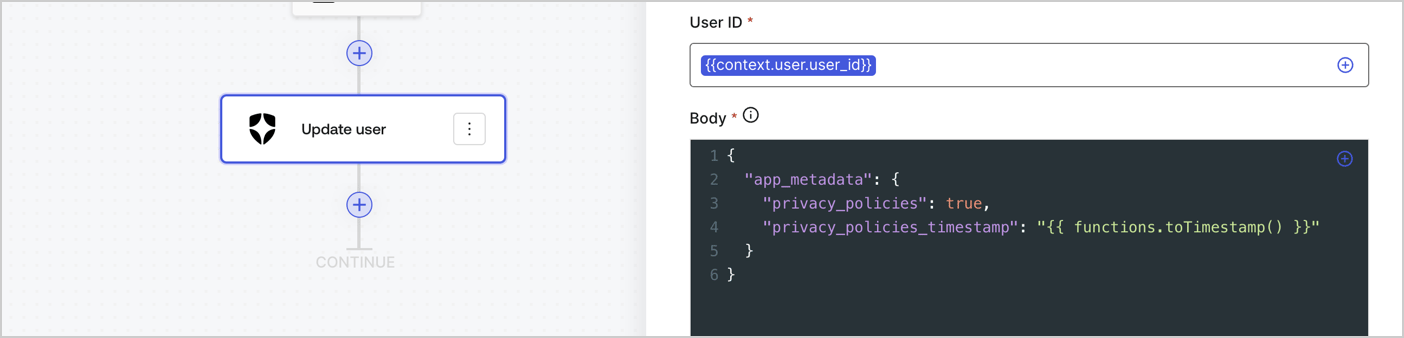
次の手順に従って、フローに Auth0 の Update user アクションを追加します。

1. **Flow** **Update app\_metadata** > **Edit flow** を選択し、新しいタブで Flow エディターを開きます。
2. StartAction の下にある **+** アイコンを選択して **Update user** アクションを追加します。以下のフィールドに入力し、**Save** を選択して続行します。

   * **Connection**: ドロップダウンから、M2M アプリケーション用の Vault 接続を選択します。

   * **User ID**: `{{context.user.user_id}}` と入力します。

   * **Body**: 次のコードをコピー＆ペーストして、privacy\_policies プロパティと privacy\_policies\_timestamp プロパティで app\_metadata を更新します。

     ```text lines theme={null}
     {
       "app_metadata": {
         "privacy_policies": true,
         "privacy_policies_timestamp": "{{ functions.toTimestamp() }}"
       }
     }
     ```

   * **Save** を選択します。
3. 保存するには **Publish** を選択します。
<Frame>
  <img src="https://mintcdn.com/docs-staging-chore-myaccount-api-autoupdate/0fu7_BySE7sFYW4z/docs/images/cdy7uua7fh8z/CvMNIwWrOUwaFW4X3G28p/1fb70ae57a20749d9ffaaba8dc0b7e26/update-user-privacy.png?fit=max&auto=format&n=0fu7_BySE7sFYW4z&q=85&s=dcf466b022235223462a227618f52729" alt="Dashboard > Actions > Forms > User case privacy policy code" data-og-width="1404" width="1404" data-og-height="338" height="338" data-path="docs/images/cdy7uua7fh8z/CvMNIwWrOUwaFW4X3G28p/1fb70ae57a20749d9ffaaba8dc0b7e26/update-user-privacy.png" data-optimize="true" data-opv="3" srcset="https://mintcdn.com/docs-staging-chore-myaccount-api-autoupdate/0fu7_BySE7sFYW4z/docs/images/cdy7uua7fh8z/CvMNIwWrOUwaFW4X3G28p/1fb70ae57a20749d9ffaaba8dc0b7e26/update-user-privacy.png?w=280&fit=max&auto=format&n=0fu7_BySE7sFYW4z&q=85&s=1424661fbb2c6bfed44069ef8240fb99 280w, https://mintcdn.com/docs-staging-chore-myaccount-api-autoupdate/0fu7_BySE7sFYW4z/docs/images/cdy7uua7fh8z/CvMNIwWrOUwaFW4X3G28p/1fb70ae57a20749d9ffaaba8dc0b7e26/update-user-privacy.png?w=560&fit=max&auto=format&n=0fu7_BySE7sFYW4z&q=85&s=4ba1b4c1688bb64371995145b9d214f0 560w, https://mintcdn.com/docs-staging-chore-myaccount-api-autoupdate/0fu7_BySE7sFYW4z/docs/images/cdy7uua7fh8z/CvMNIwWrOUwaFW4X3G28p/1fb70ae57a20749d9ffaaba8dc0b7e26/update-user-privacy.png?w=840&fit=max&auto=format&n=0fu7_BySE7sFYW4z&q=85&s=b7fee4c5300b84c99c4dad38e4ae29d6 840w, https://mintcdn.com/docs-staging-chore-myaccount-api-autoupdate/0fu7_BySE7sFYW4z/docs/images/cdy7uua7fh8z/CvMNIwWrOUwaFW4X3G28p/1fb70ae57a20749d9ffaaba8dc0b7e26/update-user-privacy.png?w=1100&fit=max&auto=format&n=0fu7_BySE7sFYW4z&q=85&s=21b9a1872f055c03c57978273a601da0 1100w, https://mintcdn.com/docs-staging-chore-myaccount-api-autoupdate/0fu7_BySE7sFYW4z/docs/images/cdy7uua7fh8z/CvMNIwWrOUwaFW4X3G28p/1fb70ae57a20749d9ffaaba8dc0b7e26/update-user-privacy.png?w=1650&fit=max&auto=format&n=0fu7_BySE7sFYW4z&q=85&s=03dcff0f589cd8fe1f4069d88cc35e6d 1650w, https://mintcdn.com/docs-staging-chore-myaccount-api-autoupdate/0fu7_BySE7sFYW4z/docs/images/cdy7uua7fh8z/CvMNIwWrOUwaFW4X3G28p/1fb70ae57a20749d9ffaaba8dc0b7e26/update-user-privacy.png?w=2500&fit=max&auto=format&n=0fu7_BySE7sFYW4z&q=85&s=edf7718105ff5e4b51ec2ba9aca19071 2500w" />
</Frame>

<Callout icon="file-lines" color="#0EA5E9" iconType="regular">
  フロー **Update app\_metadata** では、app`_metadata` オブジェクトに `privacy_policies: true` を追加し、さらに [helper function.](/docs/ja-jp/customize/forms/variables) を使ってタイムスタンプを生成します。
</Callout>

<h2 id="retrieve-the-form-render-code">
  フォームのレンダリングコードを取得する
</h2>

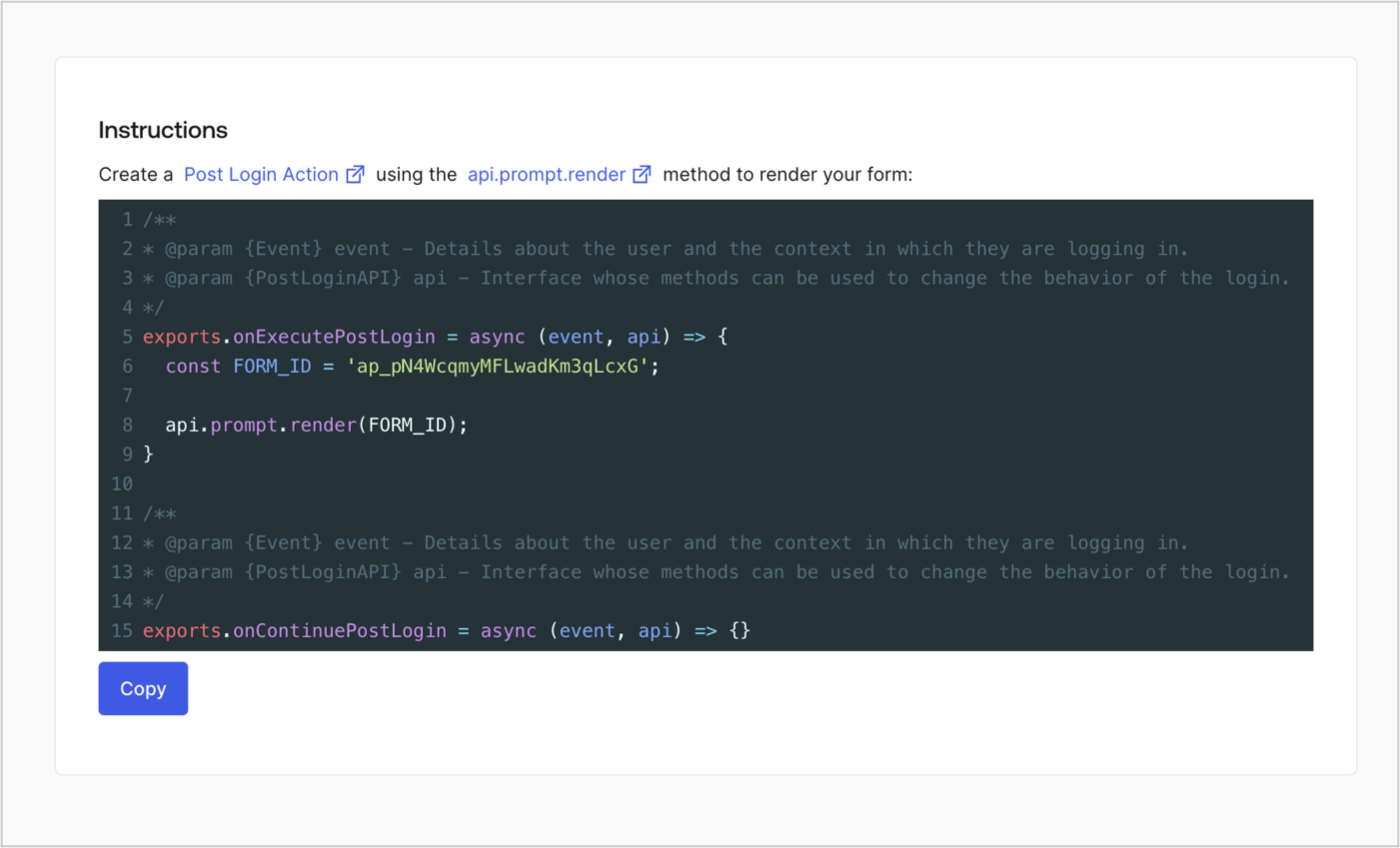
以下の手順に従って、カスタムの Post Login Action でフォームを表示するためのレンダリングコードを取得します。

* フォームエディターで、**`<> Render`** を選択します。
* **Copy** を選択します。
<Frame>
  <img src="https://mintcdn.com/docs-staging-chore-myaccount-api-autoupdate/nuDe4v-q_ZNWMmoT/docs/images/cdy7uua7fh8z/2EIUzc539sq9lwoTKbjoJv/496a864c0fc44a782c9cadca119dbfb0/embed.png?fit=max&auto=format&n=nuDe4v-q_ZNWMmoT&q=85&s=995003cf24493f6ac3b8efc92fe63dea" alt="Dashboard > Actions > Forms > Form > Embed" data-og-width="1400" width="1400" data-og-height="848" height="848" data-path="docs/images/cdy7uua7fh8z/2EIUzc539sq9lwoTKbjoJv/496a864c0fc44a782c9cadca119dbfb0/embed.png" data-optimize="true" data-opv="3" srcset="https://mintcdn.com/docs-staging-chore-myaccount-api-autoupdate/nuDe4v-q_ZNWMmoT/docs/images/cdy7uua7fh8z/2EIUzc539sq9lwoTKbjoJv/496a864c0fc44a782c9cadca119dbfb0/embed.png?w=280&fit=max&auto=format&n=nuDe4v-q_ZNWMmoT&q=85&s=5128925603cef5f85a41d7c0d9d6a691 280w, https://mintcdn.com/docs-staging-chore-myaccount-api-autoupdate/nuDe4v-q_ZNWMmoT/docs/images/cdy7uua7fh8z/2EIUzc539sq9lwoTKbjoJv/496a864c0fc44a782c9cadca119dbfb0/embed.png?w=560&fit=max&auto=format&n=nuDe4v-q_ZNWMmoT&q=85&s=e034a6894cf619cb743868b92eea20c0 560w, https://mintcdn.com/docs-staging-chore-myaccount-api-autoupdate/nuDe4v-q_ZNWMmoT/docs/images/cdy7uua7fh8z/2EIUzc539sq9lwoTKbjoJv/496a864c0fc44a782c9cadca119dbfb0/embed.png?w=840&fit=max&auto=format&n=nuDe4v-q_ZNWMmoT&q=85&s=52a0e8c7773b04201474ee6cc9b2491a 840w, https://mintcdn.com/docs-staging-chore-myaccount-api-autoupdate/nuDe4v-q_ZNWMmoT/docs/images/cdy7uua7fh8z/2EIUzc539sq9lwoTKbjoJv/496a864c0fc44a782c9cadca119dbfb0/embed.png?w=1100&fit=max&auto=format&n=nuDe4v-q_ZNWMmoT&q=85&s=a67dc66284b9cf955af070c09ba30871 1100w, https://mintcdn.com/docs-staging-chore-myaccount-api-autoupdate/nuDe4v-q_ZNWMmoT/docs/images/cdy7uua7fh8z/2EIUzc539sq9lwoTKbjoJv/496a864c0fc44a782c9cadca119dbfb0/embed.png?w=1650&fit=max&auto=format&n=nuDe4v-q_ZNWMmoT&q=85&s=73a56c78bf6f0ffa1858b8566bcde69b 1650w, https://mintcdn.com/docs-staging-chore-myaccount-api-autoupdate/nuDe4v-q_ZNWMmoT/docs/images/cdy7uua7fh8z/2EIUzc539sq9lwoTKbjoJv/496a864c0fc44a782c9cadca119dbfb0/embed.png?w=2500&fit=max&auto=format&n=nuDe4v-q_ZNWMmoT&q=85&s=d6d3375b1f14f9d2633b5542bf61691a 2500w" />
</Frame>

<h2 id="create-a-post-login-action">
  Post Login Action を作成する
</h2>

次の手順に従って、フォームを表示する post-login Action を作成します。

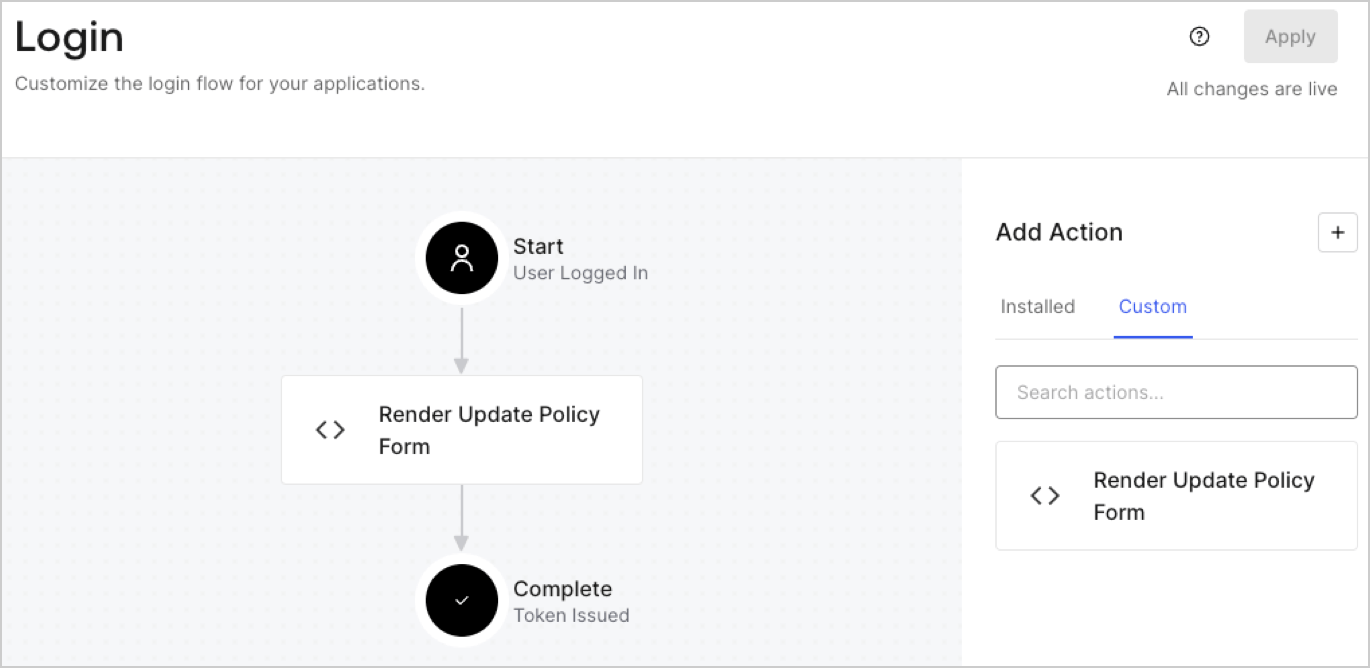
1. **Auth0 Dashboard > Actions > Flows > Login** に移動します。
2. **+** アイコンを選択し、**Build from scratch** を選択します。

   * **Name**: `Render Update Policy Form` と入力します。
   * **Trigger**: `Login / Post Login` を選択します。
   * **Runtime**: 推奨バージョンを選択します。
3. **Create** を選択します。

post-login Action を設定するには、次の手順を実行します。

1. Code editor 内の既存のコードを削除します。
2. フォームを表示するコードを Code editor に貼り付けます。
3. フォームを表示するための条件ロジックを定義するよう、コードを編集します。

   ```javascript lines theme={null}
   /**
   * @param {Event} event - ユーザーと、そのユーザーがログインしているコンテキストに関する詳細。
   * @param {PostLoginAPI} api - ログインの動作を変更するためにメソッドを使用できるインターフェース。
   */
   exports.onExecutePostLogin = async (event, api) => {
     const FORM_ID = 'REPLACE_WITH_YOUR_FORM_ID';

     if (event.user.app_metadata.privacy_policies !== true) {
       api.prompt.render(FORM_ID);
     }
   }

   exports.onContinuePostLogin = async (event, api) => { }
   ```

   <Callout icon="file-lines" color="#0EA5E9" iconType="regular">
     上記のコード例では、ユーザーの app metadata に `privacy_policies` プロパティがない場合、フォームが表示されます。
   </Callout>
4. **Deploy** を選択します。
5. **Render Update Policy Form** Action を **Login** フローにドラッグ＆ドロップします。

   <Frame>
     <img src="https://mintcdn.com/docs-staging-chore-myaccount-api-autoupdate/NCktBbrAV1W5T8qn/docs/images/cdy7uua7fh8z/5TOwDgevZsBqd7yZynUYWU/41ca909dc3007aed4f40ff794a05efa5/postlogin.png?fit=max&auto=format&n=NCktBbrAV1W5T8qn&q=85&s=871c0b5ebd90b636c9c07f4a33f798db" alt="Dashboard > Forms > Use Case > Render update policy form login action" data-og-width="1370" width="1370" data-og-height="668" height="668" data-path="docs/images/cdy7uua7fh8z/5TOwDgevZsBqd7yZynUYWU/41ca909dc3007aed4f40ff794a05efa5/postlogin.png" data-optimize="true" data-opv="3" srcset="https://mintcdn.com/docs-staging-chore-myaccount-api-autoupdate/NCktBbrAV1W5T8qn/docs/images/cdy7uua7fh8z/5TOwDgevZsBqd7yZynUYWU/41ca909dc3007aed4f40ff794a05efa5/postlogin.png?w=280&fit=max&auto=format&n=NCktBbrAV1W5T8qn&q=85&s=6d29ddb9c1ee42a7221d94494c36520e 280w, https://mintcdn.com/docs-staging-chore-myaccount-api-autoupdate/NCktBbrAV1W5T8qn/docs/images/cdy7uua7fh8z/5TOwDgevZsBqd7yZynUYWU/41ca909dc3007aed4f40ff794a05efa5/postlogin.png?w=560&fit=max&auto=format&n=NCktBbrAV1W5T8qn&q=85&s=39da37b6265390edc23289b1ee228429 560w, https://mintcdn.com/docs-staging-chore-myaccount-api-autoupdate/NCktBbrAV1W5T8qn/docs/images/cdy7uua7fh8z/5TOwDgevZsBqd7yZynUYWU/41ca909dc3007aed4f40ff794a05efa5/postlogin.png?w=840&fit=max&auto=format&n=NCktBbrAV1W5T8qn&q=85&s=1446c49a71b09c9690cc3b4fc0f969ef 840w, https://mintcdn.com/docs-staging-chore-myaccount-api-autoupdate/NCktBbrAV1W5T8qn/docs/images/cdy7uua7fh8z/5TOwDgevZsBqd7yZynUYWU/41ca909dc3007aed4f40ff794a05efa5/postlogin.png?w=1100&fit=max&auto=format&n=NCktBbrAV1W5T8qn&q=85&s=ed548bde9ba085d9c86e920388cc3b04 1100w, https://mintcdn.com/docs-staging-chore-myaccount-api-autoupdate/NCktBbrAV1W5T8qn/docs/images/cdy7uua7fh8z/5TOwDgevZsBqd7yZynUYWU/41ca909dc3007aed4f40ff794a05efa5/postlogin.png?w=1650&fit=max&auto=format&n=NCktBbrAV1W5T8qn&q=85&s=f992ac93e7066021f65e92ab48c9386d 1650w, https://mintcdn.com/docs-staging-chore-myaccount-api-autoupdate/NCktBbrAV1W5T8qn/docs/images/cdy7uua7fh8z/5TOwDgevZsBqd7yZynUYWU/41ca909dc3007aed4f40ff794a05efa5/postlogin.png?w=2500&fit=max&auto=format&n=NCktBbrAV1W5T8qn&q=85&s=12bdb13e396ae6cc72c370b8aa111aee 2500w" />
   </Frame>
6. **Apply** を選択します。

<h3 id="test-implementation">
  実装をテストする
</h3>

次の手順に従って、実装をテストします。

1. `app_metadata` 属性の `privacy_policies` に値が設定されていない既存ユーザーでログインします。
2. Login フロー の post-login Action によってフォームが表示され、同意を求めるプロンプトが表示されます。
3. **Auth0 Dashboard > User Management > Users** を選択し、該当するユーザーを見つけて、`app_metadata` 属性の `privacy_policies` に `true` の値とタイムスタンプが含まれていることを確認します。